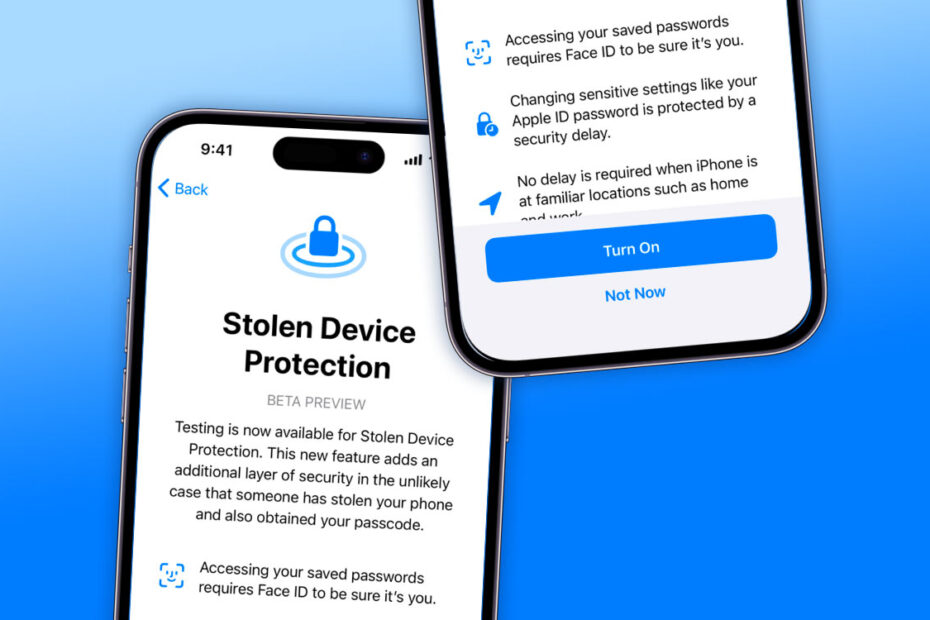

- Add an extra layer of security if your iPhone is stolen
- Require Face ID or Touch ID for sensitive actions
- Stop thieves from locking you out of your own Apple ID
Your iPhone already includes strong security protections, but there’s an optional setting that goes a step further if your device ever falls into the wrong hands. Stolen Device Protection is designed to protect your data even in the worst-case scenario – when someone has both your iPhone and your passcode.
When enabled, it restricts access to sensitive actions unless biometric authentication is used, and adds extra safeguards when your phone is away from trusted locations. Here’s how it works, and why it’s worth considering.
What is Stolen Device Protection?
With Stolen Device Protection feature active on your iPhone, you will be required to input biometric authentication when accessing key features away from your trusted places.
In other words, you’ll need to use Face ID or Touch ID to access passwords, erase content, turn off Lost Mode, or make online purchases. Currently, you can access these things using your device passcode, but with Stolen Device Protection active, a passcode option will not be offered.
In addition to this, activating Stolen Device Protection will enforce a one-hour wait for something like changing your Apple ID password when in an unfamiliar location, as well as the aforementioned biometric authentication stage.
Why is Stolen Device Protection necessary?
Your iPhone is incredibly secure for as long as your passcode is only known by you. However, if a would-be thief managed to obtain your passcode, perhaps by observing over your shoulder while you enter it, then you’re suddenly very vulnerable.
In such a scenario, the thief could easily gain entry to your phone, change your Apple ID password, and turn off Find My, thus blocking off the usual methods to retrieve your phone or protect your data. This is sadly a common technique used by thieves to avoid detection.

How do I activate Stolen Device Protection?
Remember this feature is opt-in, meaning it’s turned off by default. To activate it, first ensure you have iOS 17.3 or higher installed on your device. You’ll also need to be in a trusted location like home or work. To check or edit these locations, open the Phone app and check out your contact card at the top of the list.
Head to Settings > Face ID > Passcode/Touch ID > Passcode, then under Stolen Device Protection tap Turn On Protection.
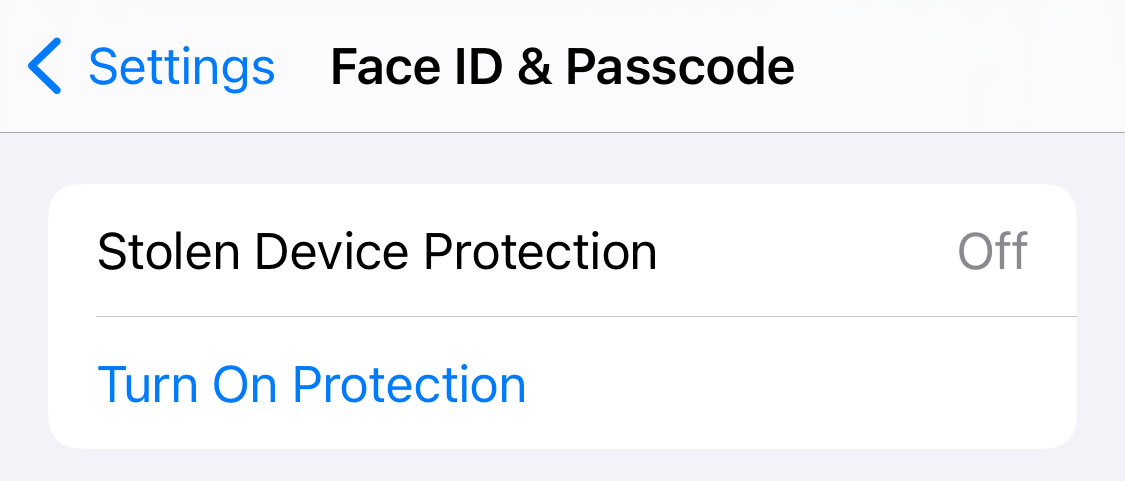
Note that this feature can be turned off again using your passcode, but only when in a trusted area. Your device uses location data to check whether you’re at a known location like home or work, for example.