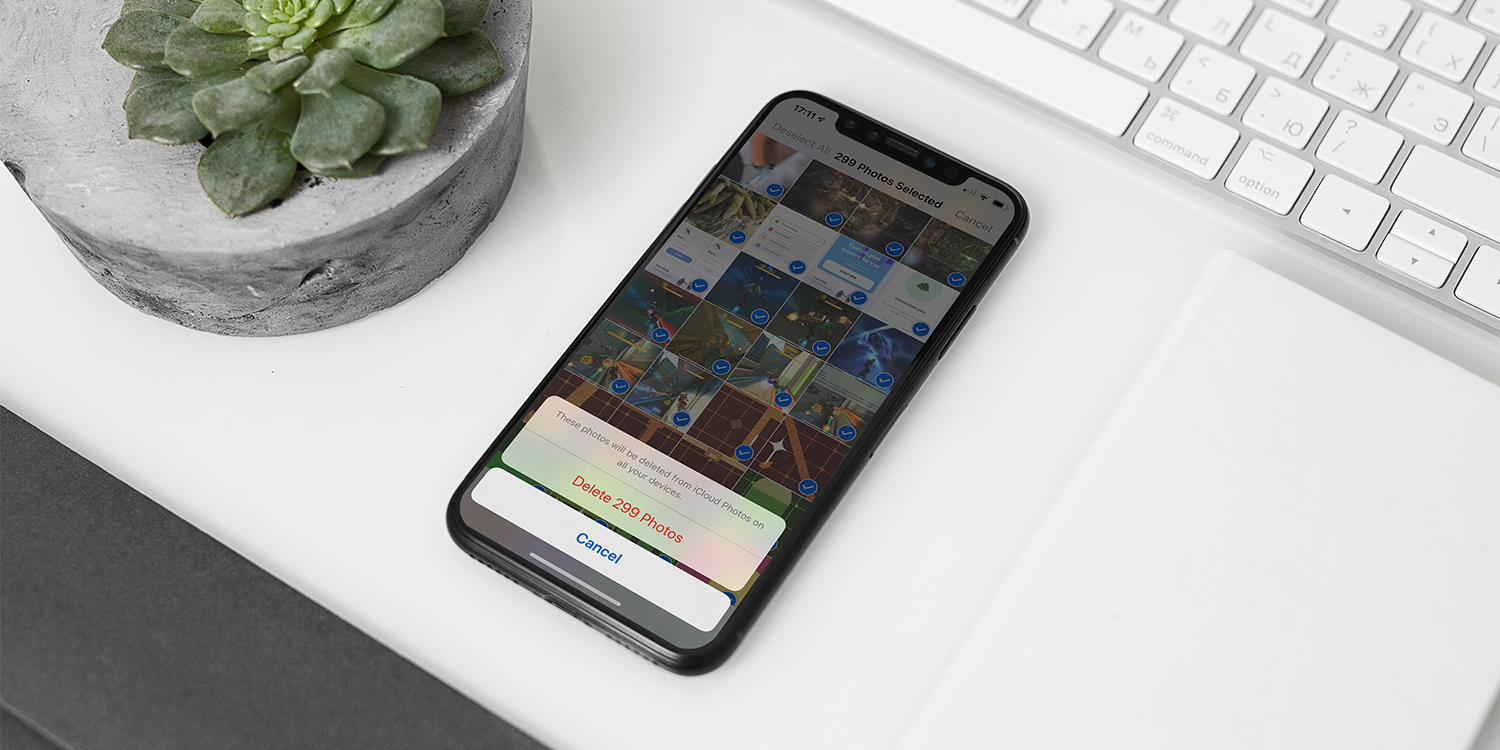

- Use built-in Photos tools to remove duplicates and clutter fast
- Target screenshots, bursts, and large videos to free storage
- Go further with a free third-party app that helps pick the best shots
As useful as Apple’s Photos app is for keeping your photo library in shape, it’s prone to clogging up with unneeded images and videos. This makes scrolling through your camera roll a pain, and it eats into valuable storage space, too.
Fortunately, iOS includes several simple tools to help you tidy things up and get your photo library back under control.
Detect duplicates
Photos includes a built-in tool for finding exact duplicate photos and videos.
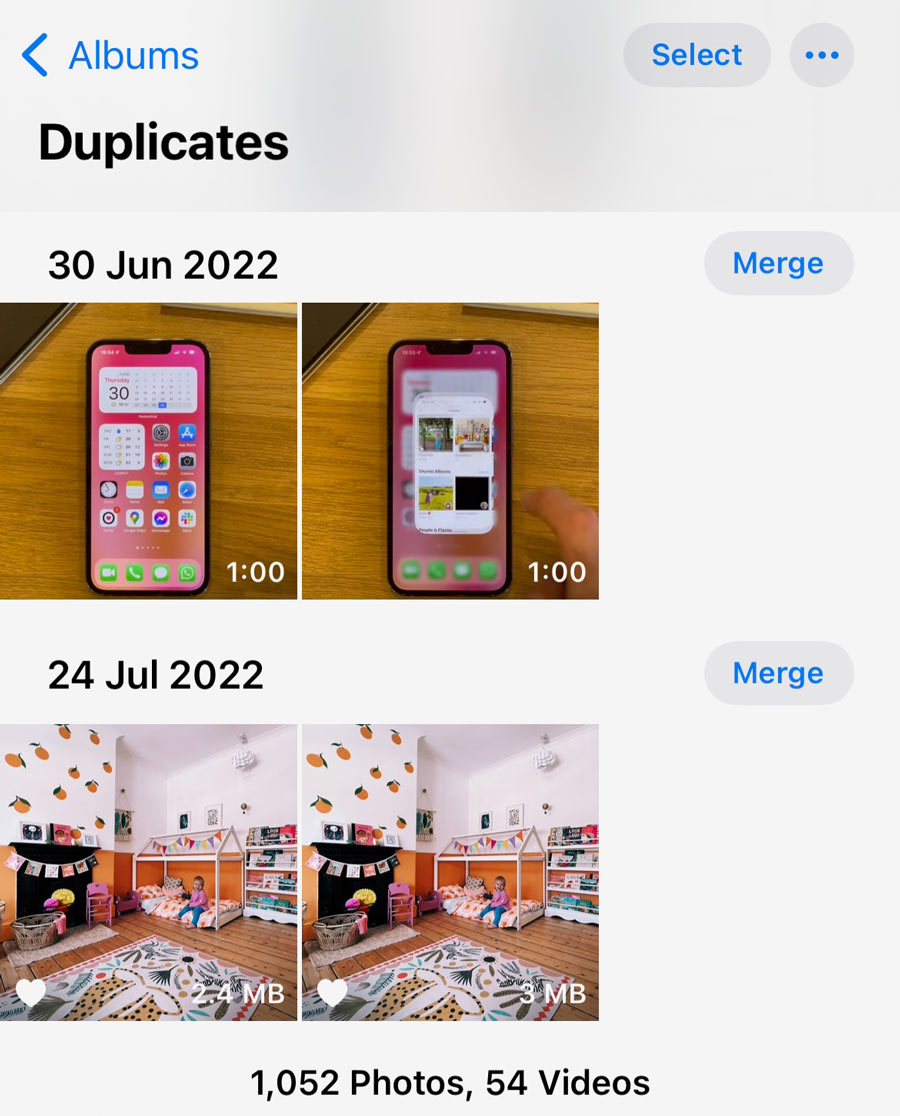
Open the Photos app, go to Albums, then scroll down to the Utilities section and tap Duplicates. Here you’ll see matching images grouped together.
Tap Merge next to a set to remove the duplicate. Photos automatically keeps the highest-quality version if there’s any difference. You can also tap Select to merge multiple groups at once, or even use Select All if you’re confident.
Note that merged items are moved to the Recently Deleted folder, so storage isn’t freed immediately unless you manually clear that folder.
Multi-select
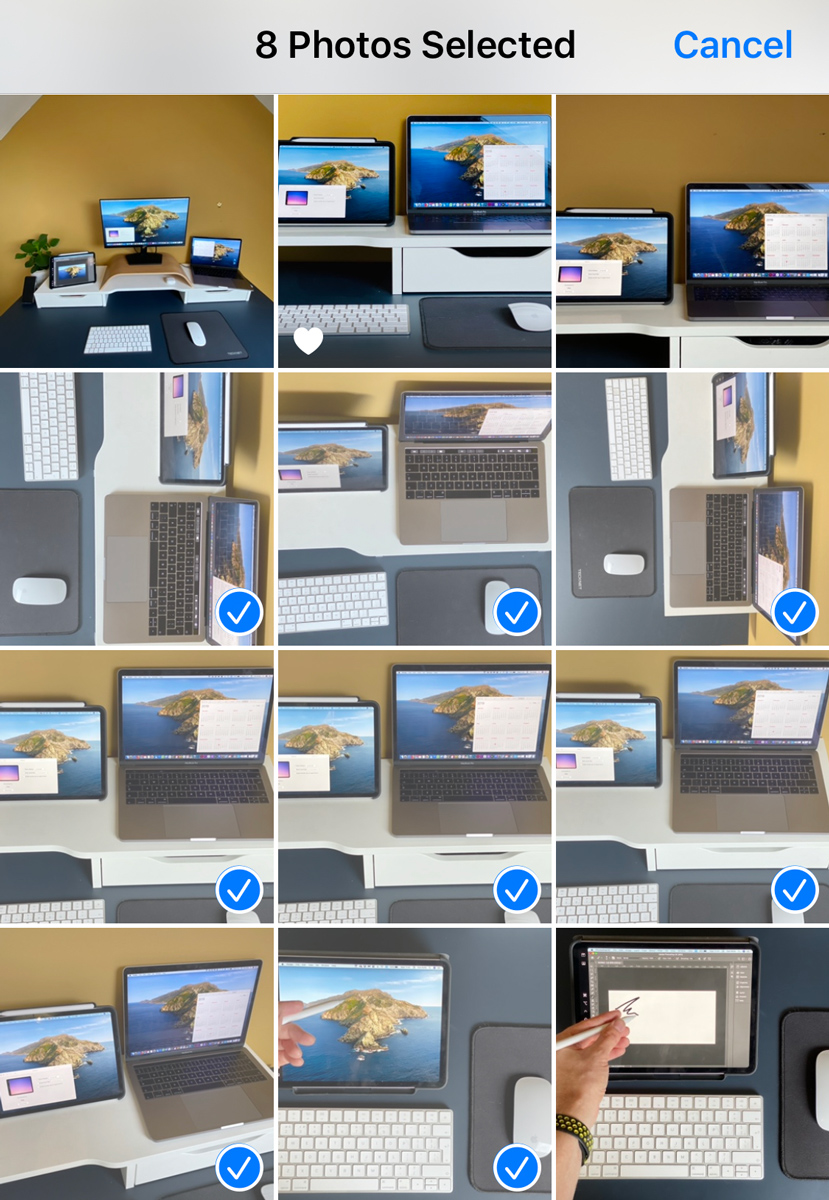
If you want to remove a large number of photos at once, open the Photos tab and tap Select in the top-right corner. You can then drag your finger across photos to select them quickly.
You can also tap Select next to a date header to choose everything captured on that day – now that’s a tip even the most hardened iOS experts might not know!
When you’re done, tap the trash icon to delete them in one go.
Clear specific filetypes
Screenshots tend to pile up fast, even though most aren’t worth keeping long-term.
Go to Albums > Media Types > Screenshots to see them all in one place. Tap Select, choose the ones you no longer need (or tap Select All), then delete.
Burst photos are another common space-waster. Head to Albums > Media Types > Bursts to review them. If you want to keep just one image from a burst, open it, tap Select, choose your favorite, then tap Done and Keep Only Favourite.
It’s also worth checking your Slo-mo videos occasionally – they take up significantly more space than standard clips.
Recently deleted
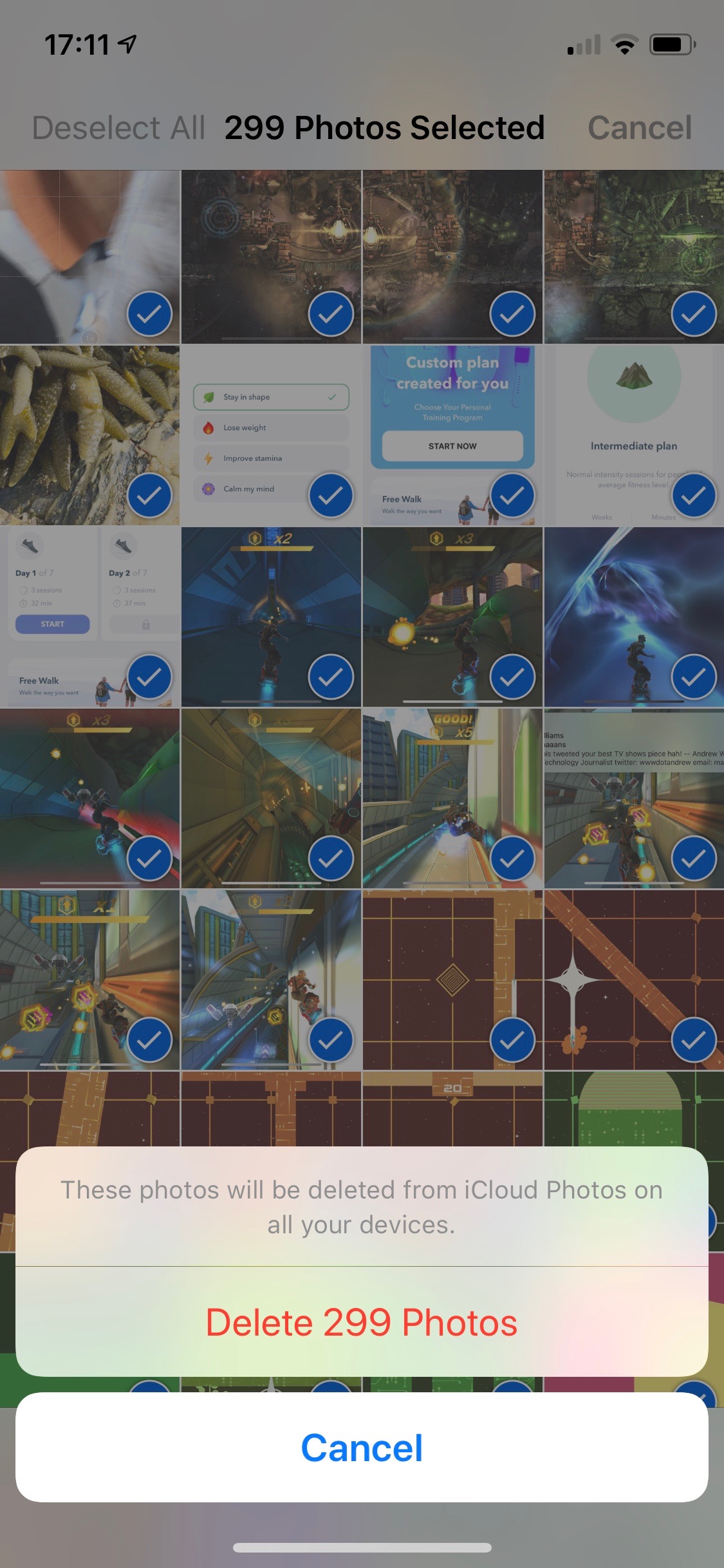
When you delete photos or videos, they aren’t removed immediately. Instead, they’re stored in the Recently Deleted album for around 30 days.
You’ll find this under Photos > Albums > Recently Deleted. From here, you can recover items you removed by mistake – or permanently delete everything to reclaim storage straight away. Use the latter option carefully.
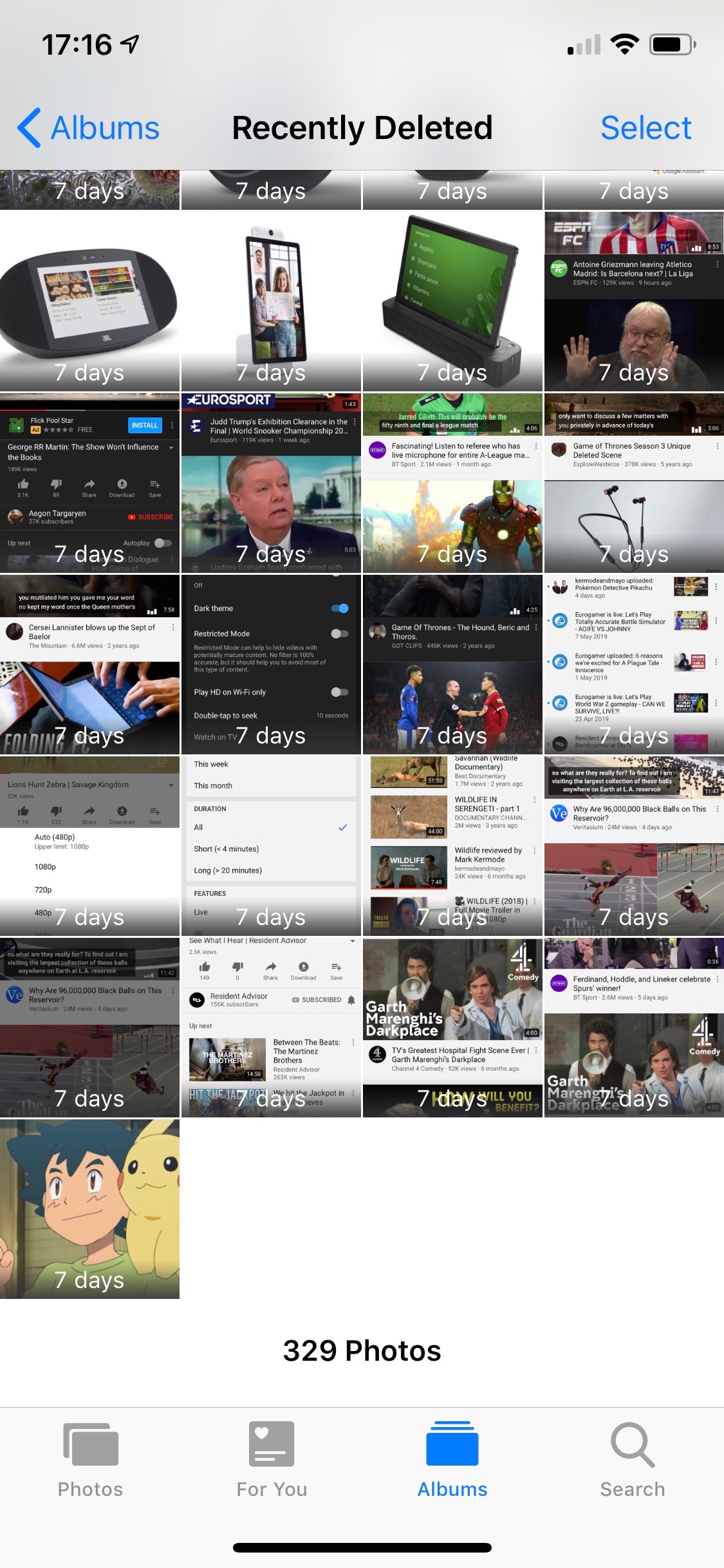
On the flip side, if you want to reclaim storage space immediately after deleting something, head here and press Select > … > Delete All. Use with caution!
Go further with the Reclean app
If you want even more help cleaning up your photo library, the free third-party app Reclean is well worth a look.
Reclean offers many of the same cleanup features as the Photos app, but adds smart extras such as detecting similar photos – not just exact duplicates – and helping you quickly choose the best version to keep.
Amazingly for this type of utility, Reclean is completely free and contains no ads. If you’re planning a full spring clean, this app is probably the fastest way to do it.