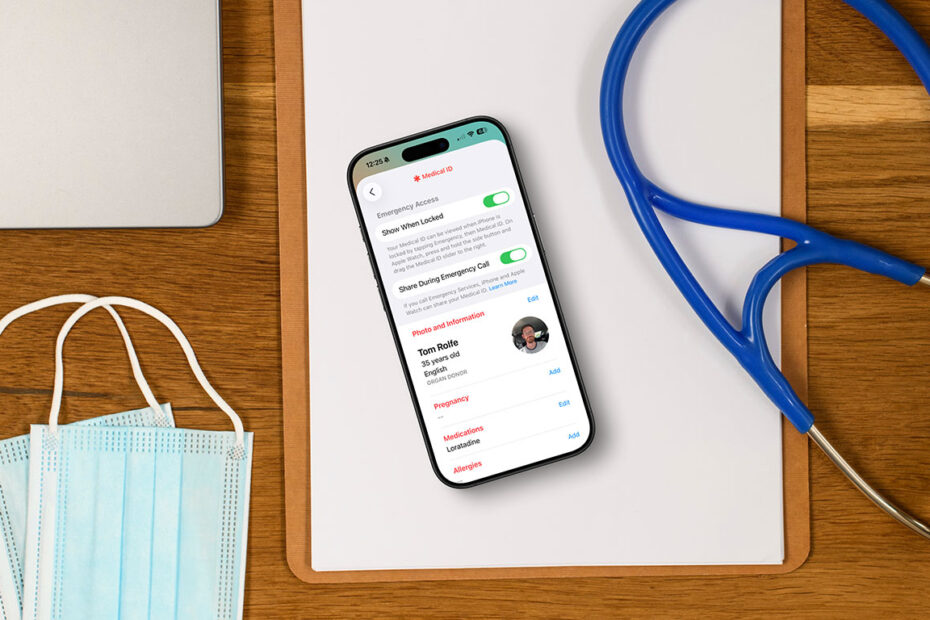

- Emergency info, accessible without unlocking
- Takes two minutes to set up
- Helps first responders act fast
If you’ve never set up Medical ID on your iPhone, it’s one of those features that’s easy to overlook – but genuinely important. Medical ID stores key health and contact information that can be accessed from the Lock Screen in an emergency, even if your phone is locked.
That means paramedics, emergency services, or even a passer-by can quickly see details like your name, age, medical conditions, allergies, medications, blood type, and who to contact if something happens to you. If you’re unconscious or unable to communicate, this information can make a real difference.
What Medical ID does (and why it matters)
Medical ID is designed specifically for emergency situations. First responders are trained to look for it, and it’s available directly from the Emergency screen on your iPhone without needing Face ID or a passcode.
It’s especially valuable if you have conditions that aren’t immediately obvious, such as diabetes, severe allergies, epilepsy, or if you’re taking medication that could affect treatment. Even basic details like your name and emergency contact can save crucial time.
How to set up Medical ID on iPhone
Open the Health app, then tap your profile picture in the top-right corner. Choose Medical ID, then tap Get Started (or Edit if you’ve set one up before).
On the Medical ID screen, make sure Show When Locked is switched on. You can also enable Share During Emergency Call if you want your details to be shared automatically when you dial emergency services.
From here, fill in as much or as little information as you’re comfortable with. You can add medical conditions, allergies, medications, blood type, and any additional notes that might help someone treat you properly.
Scroll to the bottom to add emergency contacts. Their phone numbers – along with their relationship to you – will appear on the Emergency dialer screen. If you use an Apple Watch with fall detection enabled, these contacts can also be notified automatically after a serious fall.
Tap Done when you’re finished.
How to check it’s working
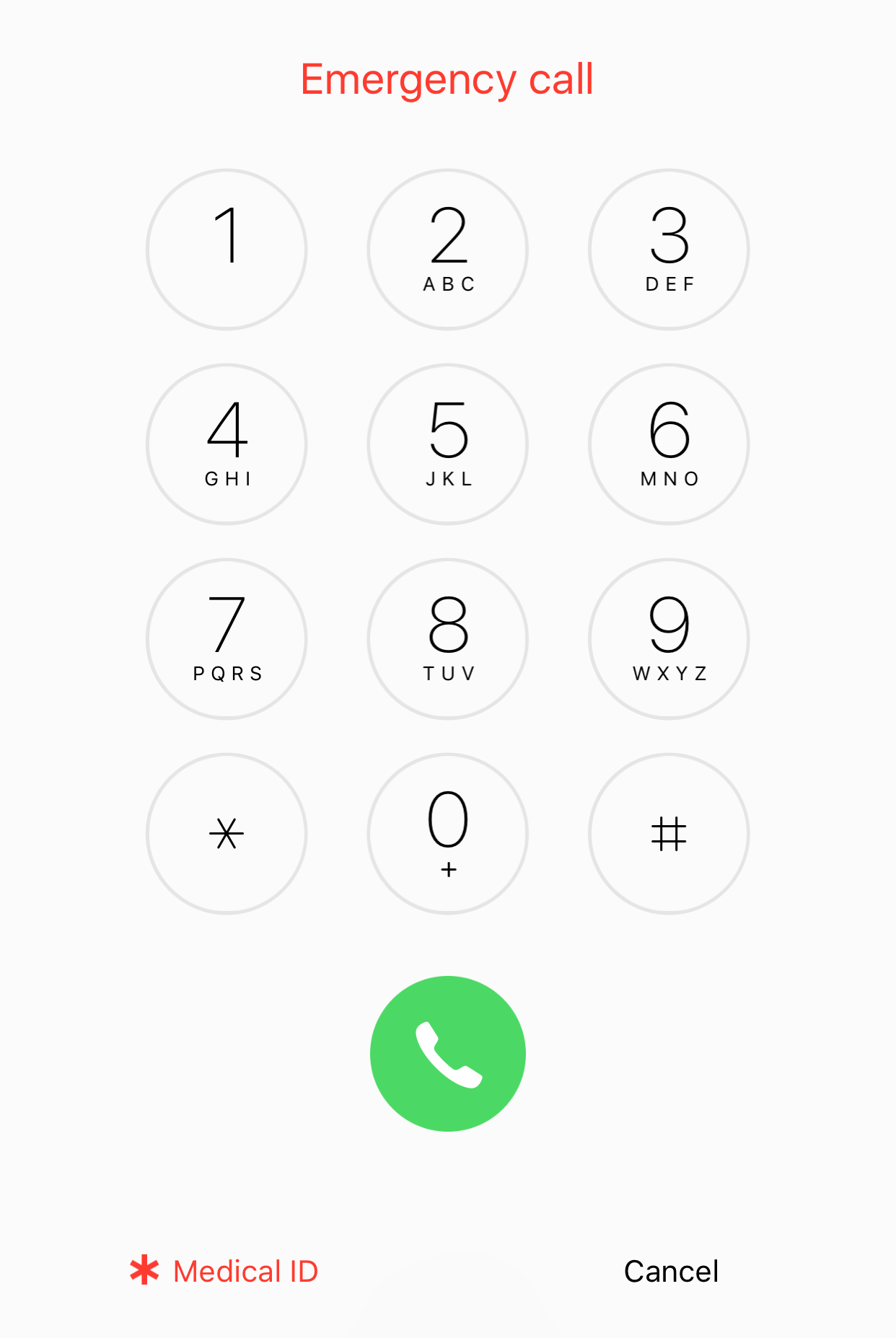
You can test everything without putting yourself in danger. Wake your iPhone, tap Emergency on the Lock Screen keypad, then select Medical ID. If your details appear, you’re all set.
It’s a small setup job that takes a couple of minutes – but it’s one of the most important safety features your iPhone offers.