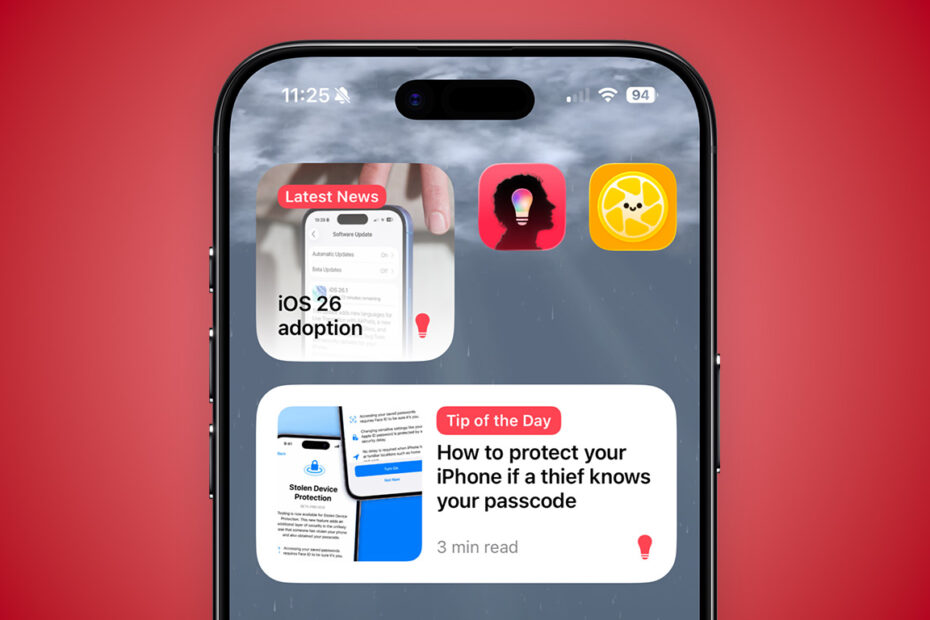

The Tips & Tricks app includes Home Screen widgets so you can keep up with new content at a glance.
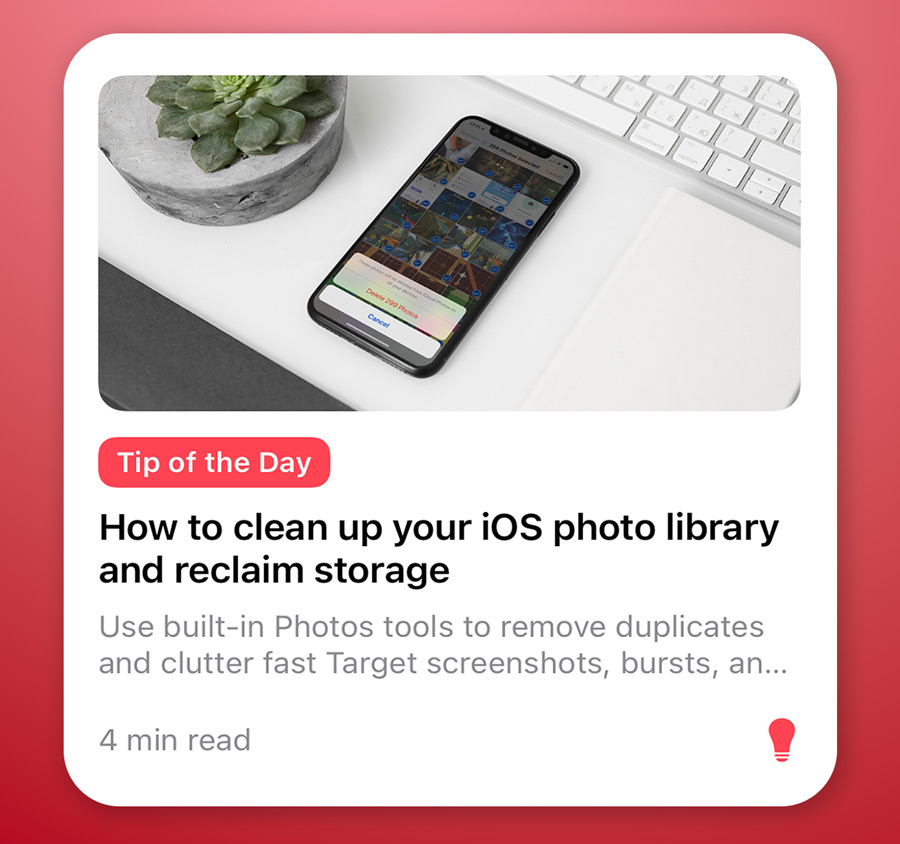
There are two options available: Latest News, which surfaces our most recent posts, and Tip of the Day, which highlights a single useful tip each day.
How to add widgets
Start by long-pressing on an empty area of the Home Screen until the icons begin to jiggle. This is editing mode. Tap the + button in the top-left corner to open the widget gallery, then search for Tips & Tricks or scroll until you find it in the list.
You’ll see a carousel previewing each widget variation and size. Swipe to select the one you want, then tap Add Widget.

You can drag to reposition the widget like any other app icon, and press Done to finish. Once placed, you can return to the Home Screen editing mode any time and drag the corner handles to quickly resize the widget.
The widget will update automatically, keeping the latest Tips & Tricks content visible without opening the app. You can tap the widget to open the app directly to the article in question.