


- Why a password alone isn’t enough
- How Apple’s 2FA actually protects you
- How to check and enable it in under a minute
Your Apple ID is the key to almost everything on your iPhone – from purchases and subscriptions to your photos, backups, and personal data in iCloud. That makes it one of the most important accounts you own.
Two-factor authentication adds a crucial extra layer of protection. Even if someone manages to get hold of your password, they still won’t be able to access your account without approval from one of your trusted devices. It’s a small step that dramatically improves your security, and it’s one every iPhone owner should enable.
Why bother?
This is really important as your Apple ID stores information including your name, address, purchase history and of course your payment details for use on iTunes and the App Store. It also grants access to anything stored in iCloud, like your photo library.
Using two-factor authentification means that even if someone somehow finds out your email address and password, they can’t get into your account without also having physical access to your device and its passcode. It’s often described as a lock combining “something you know” (login details) with “something you have” (iPhone/iPad) and makes it much harder for someone to break into your account.
How does it work?
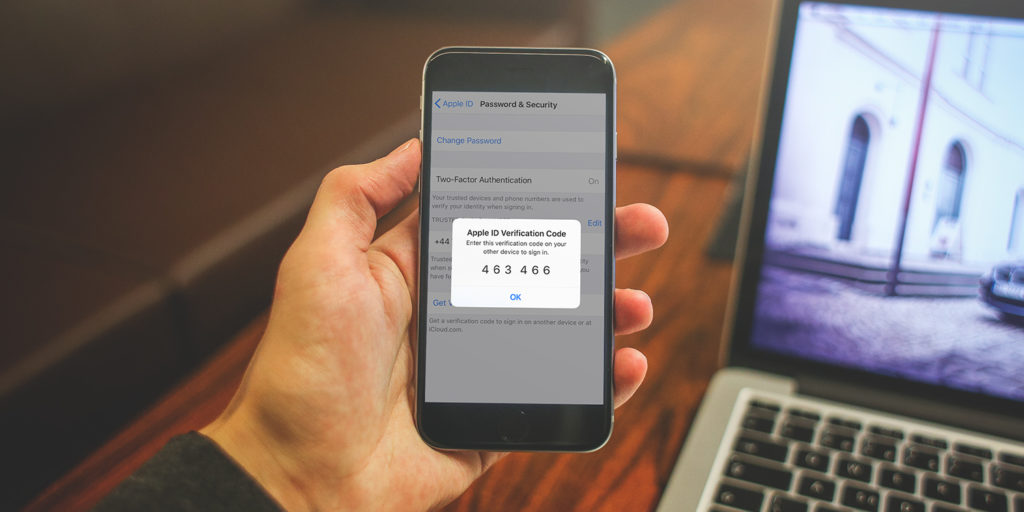
It works by requiring a verification code from one of your registered devices in order to log into your Apple ID or iCloud account on a new device. So if somebody tries to get into your account on a computer that’s never been associated with you before, it will send an alert to one of your registered, trusted devices. You’ll need to confirm your identity by typing the verification code from one device into the other. Otherwise, access will be denied!
If you’re the sort of person who likes to understand these things in more detail, check out Tom Scott’s ten-minute explainer on the subject. It’s a surprisingly interesting watch.
Make sure it’s enabled
We highly recommend setting up two-factor authentication if you haven’t already: here’s how.
On your device, tap your name in the Settings app and then Password & Security. Tap Turn on Two-Factor Authentication. Enter your trusted phone number. If someone tries to sign into your account, your device will get an alert and the sign-in attempt will fail if you don’t respond.
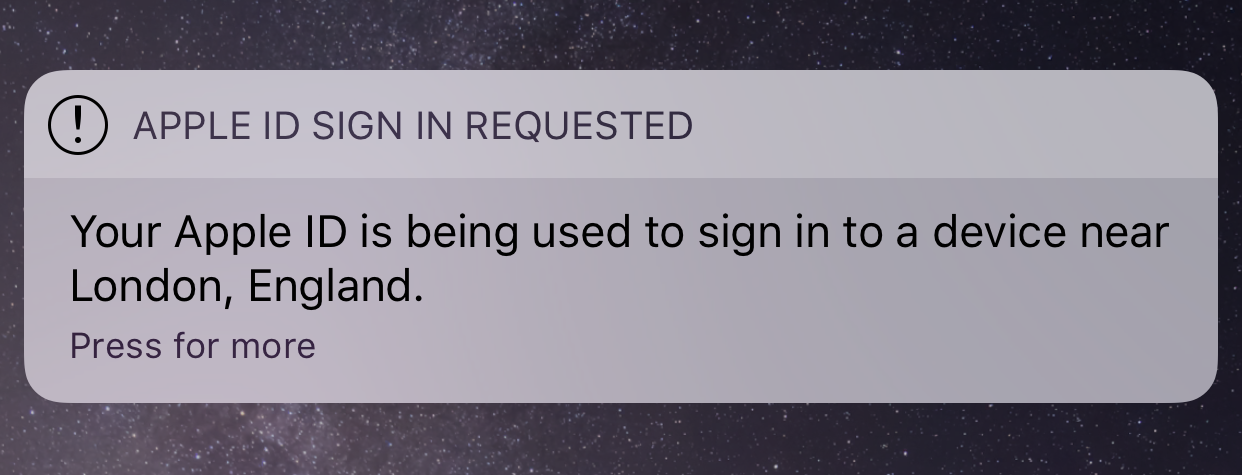
Don’t worry if the estimated location isn’t entirely accurate – it often defaults to the nearest capital city
You can also manually generate a verification code from this area in Settings if you missed the prompt and need to login to a new device or iCloud.com.