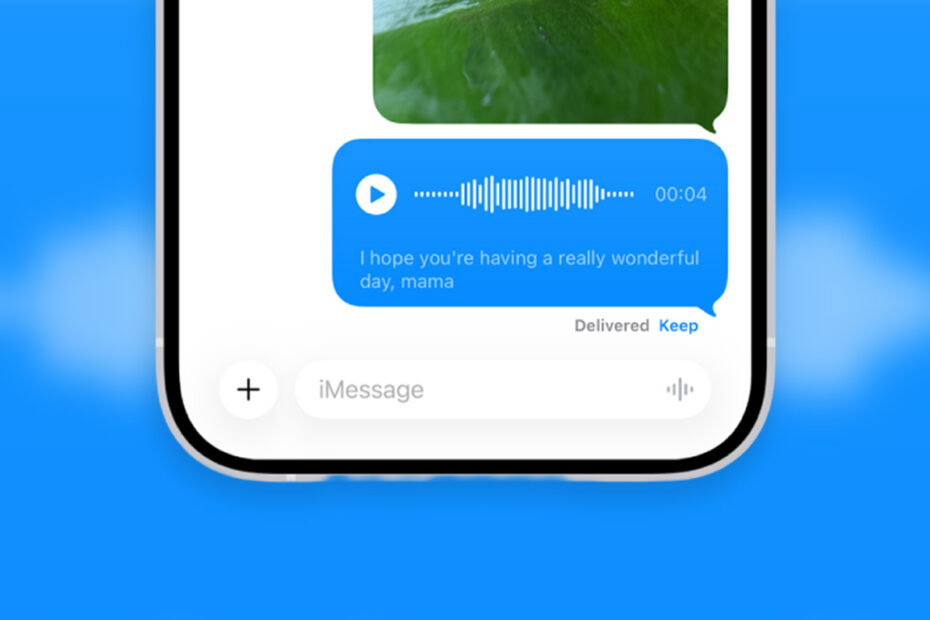

Typing isn’t always the best way to get your point across. Sometimes a quick voice note is faster, warmer, or just easier – and Messages has a decent built-in recorder that most people overlook. Here’s everything worth knowing about it.
How to record a voice note
Open a conversation in Messages and tap the audio waveform icon to the left of the text field. Tap Audio and start talking. When you’re done, you can pause, review the recording, add more to the end, or just send it. If you want to check how you sound before committing, tap the play button first – no obligation to send anything you’re not happy with.
For quick follow-up messages, touch and hold the audio icon in the text field to start recording immediately without the extra tap.
Where’d my note go?
Here’s something that catches a lot of people off guard. By default, voice notes in Messages automatically delete themselves two minutes after you listen to them. Not two minutes after they arrive – two minutes after you play them. One moment they’re there, then they’re gone.
This can be confusing if you’re not expecting it. If you want to keep a message before it vanishes, tap the Keep button immediately after listening.
If you’d rather messages always stayed put, go to Settings > Apps > Messages, tap Expire under Audio Messages, and switch it to Never. Problem solved.
Auto-transcription
Voice notes in Messages are automatically transcribed, so the recipient can read what you said without even pressing play. With Live Translation, it will even automatically convert the transcription to another language if you’re sending to somebody who might need it.
The catch is that the transcription isn’t always accurate, and some people will read the transcript rather than listen, which means they might get a very different impression of what you actually said. Speak clearly and slowly in your message to lower the risk of a bad transcription.
Raise to Listen
If someone sends you a voice note, you can raise your iPhone to your ear to play it automatically – just like a phone call. Lower it and raise it again to record a reply. If you find it triggering accidentally, head to Settings > Apps > Messages and turn off Raise to Listen.
A more permanent option
If you need a voice note that sticks around reliably – for a longer message, something you want the recipient to keep, or anything you might want to revisit – the Voice Memos app is worth considering. Record your message there, hit the share button, and send the audio file directly via Messages. It bypasses the auto-delete system entirely and lands as a standard audio attachment.