Part of Quick TricksTip 7 of 16
- Share your Wi-Fi password automatically with nearby devices
- How to create a QR code for instant access on any phone
- A handy way to store your password for when all else fails
Wi-Fi passwords are annoying. But if you have visitors who want to use your network, you’ll have to grant them access somehow. There’s surely a better way than painstakingly reading aloud the over-complicated password printed on the back of your router, right?
Sure, you could reconfigure your router with a new, easy-to-type password for your local Wi-Fi network, but that’s an overly technical solution for many people, and not always possible depending on your setup.
Password sharing
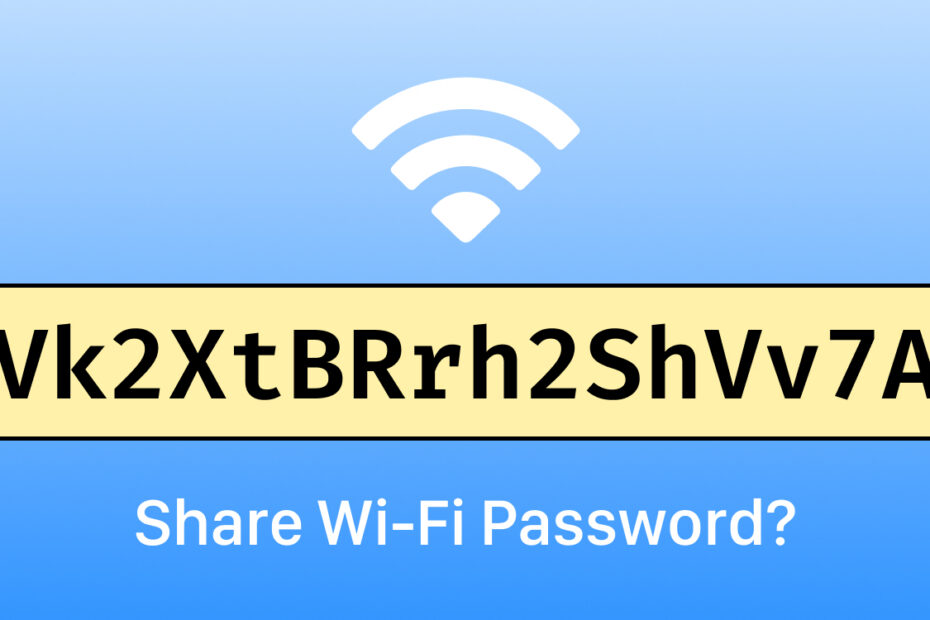
Luckily, iPads made this easier a few years back with the introduction of password sharing, which will automatically prompt you to share your Wi-Fi password when a friend tries to join the network. In many cases, it’s a really handy feature to have.
However, for automatic password sharing to work you’ll need to be in close proximity to the other device, with Bluetooth on, and the friend registered in your contacts. And it only works with Apple devices; bad luck Android and Windows users. Even with those boxes ticked, in reality, sometimes this feature can be a little unreliable.
Luckily there are a few alternatives we can suggest to make logging into your home network easier, quicker, and – dare we say it – kind of cool?
Network QR codes
It’s possible to create a QR code that automatically connects to a specific network when scanned with the Camera app. That means a visitor could scan your code and be logged straight in without typing anything or touching the Settings app. It’ll work with iOS and Android devices, and you don’t need to physically be there to initiate it. Nice.
Open the new Passwords app to the Wi-Fi section and choose a network. Press Show Network QR Code and you’ll see a QR grid appear on screen. Show your device to someone and they can scan the code for instant Wi-Fi access. (Pro tip: you can also screenshot the code and send it to someone if you’re not in the same place. They’ll need to long-press the QR code on the screenshot to use it.)
Bonus: Cheatsheet
Here’s one final piece of advice. Obviously, not all devices can connect with the methods above. If you’re using an old work laptop, or setting up a TV for streaming, or just bought a new smart gadget, you might have no choice but to type in your Wi-Fi password manually.
For those occasions, install the free Cheatsheet app and store your password in there. Add the widget to your home screen (tucked discretely away from the main page) and you can quickly reference the password any time you need it, without fumbling around the back of the router or looking through blurry photos or handwritten scraps of paper. If you’re worried about the security implications, a one-off IAP in Cheatsheet allows you to add a passcode lock.