
- Make and receive calls over Wi-Fi when cell signal is weak
- Optionally enable calling on your other Apple devices
- Call quality depends on your Wi-Fi strength
In the age of constant wireless connectivity, Wi-Fi Calling is a real lifesaver for anyone dealing with patchy cell reception. Whether you’re underground, out in the countryside, or inside a building that blocks mobile signals, a reliable Wi-Fi connection is all you need to place and receive calls just as you would with full bars.
It’s especially useful if you live somewhere with spotty coverage, and it can help travellers dodge roaming charges when abroad.
How to enable Wi-Fi Calling
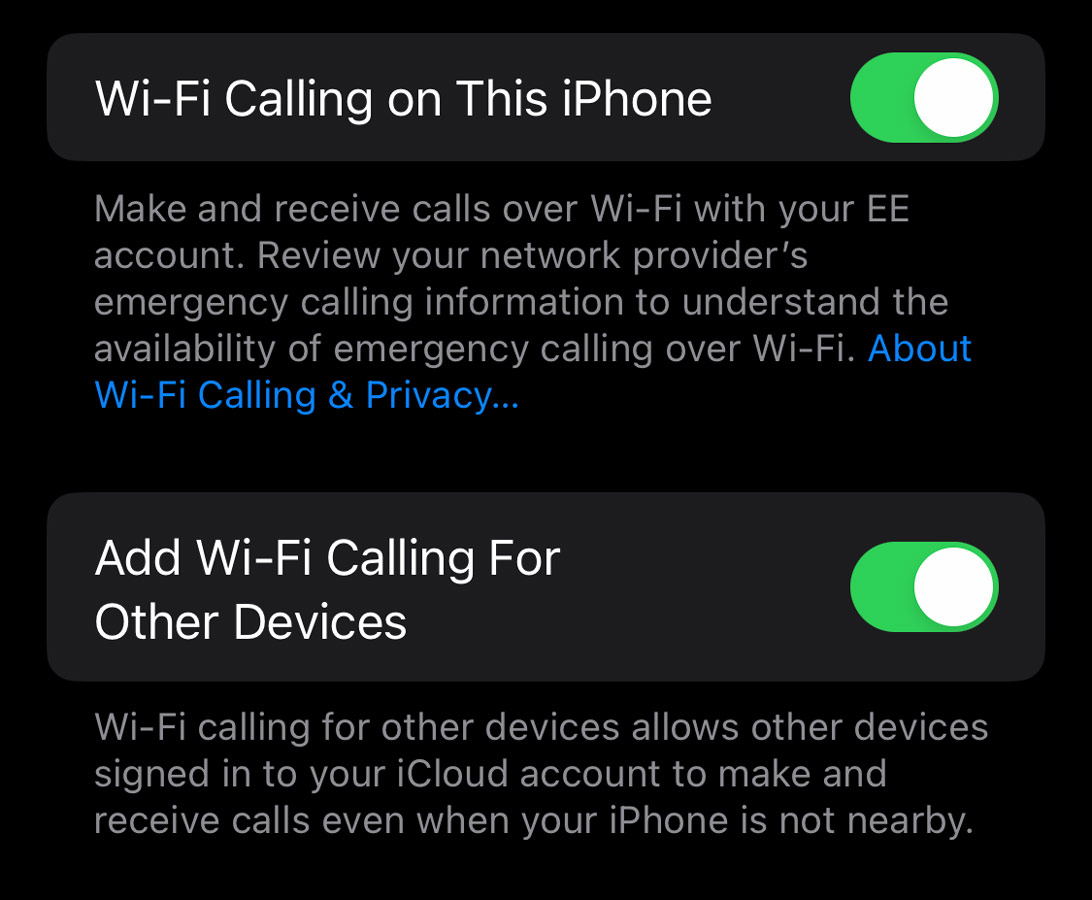
Setup is simple. Open Settings, go to Phone, and tap Wi-Fi Calling. Toggle on Wi-Fi Calling on This iPhone to activate it. In some regions, you may be asked to enter an emergency address, as Wi-Fi calls don’t always transmit your location automatically.
Loop in other devices
You’ll also see an option for Add Wi-Fi Calling For Other Devices. Turn this on to let your iPad, Mac, or Apple Watch make and receive calls over the internet as long as they’re signed into the same Apple ID. For finer control, head to Settings > Phone > Calls on Other Devices.
Keep this in mind…
Wi-Fi Calling depends entirely on your connection strength: a weak Wi-Fi signal can lead to choppy audio, so sometimes sticking with cellular is the better choice. If your Wi-Fi plan has data caps, calls count against them, and the feature may use slightly more battery than standard calling.