


Since iOS 26, one of the more practical ways to put Apple Intelligence to work is through the Shortcuts app, where you’ll find an Apple Intelligence section in the Gallery.

This section includes several pre-built examples that show how AI can be integrated into everyday workflows. Once you’ve built or downloaded a shortcut like this, you can trigger it with Siri, place it on your Home Screen, or link it to the Action Button if you’re feeling fancy.
When creating a shortcut, the Use Model block lets you rope AI into the workflow. In practice, this means you can do things like feed a text input into an AI model with a specific prompt – for instance, telling it “help me find a recipe using what I have left in my fridge.” That’s exactly how the Leftover Recipes shortcut works, as seen below. Check out the Get Started with Models shortcut to see how to plug all these capabilities together.
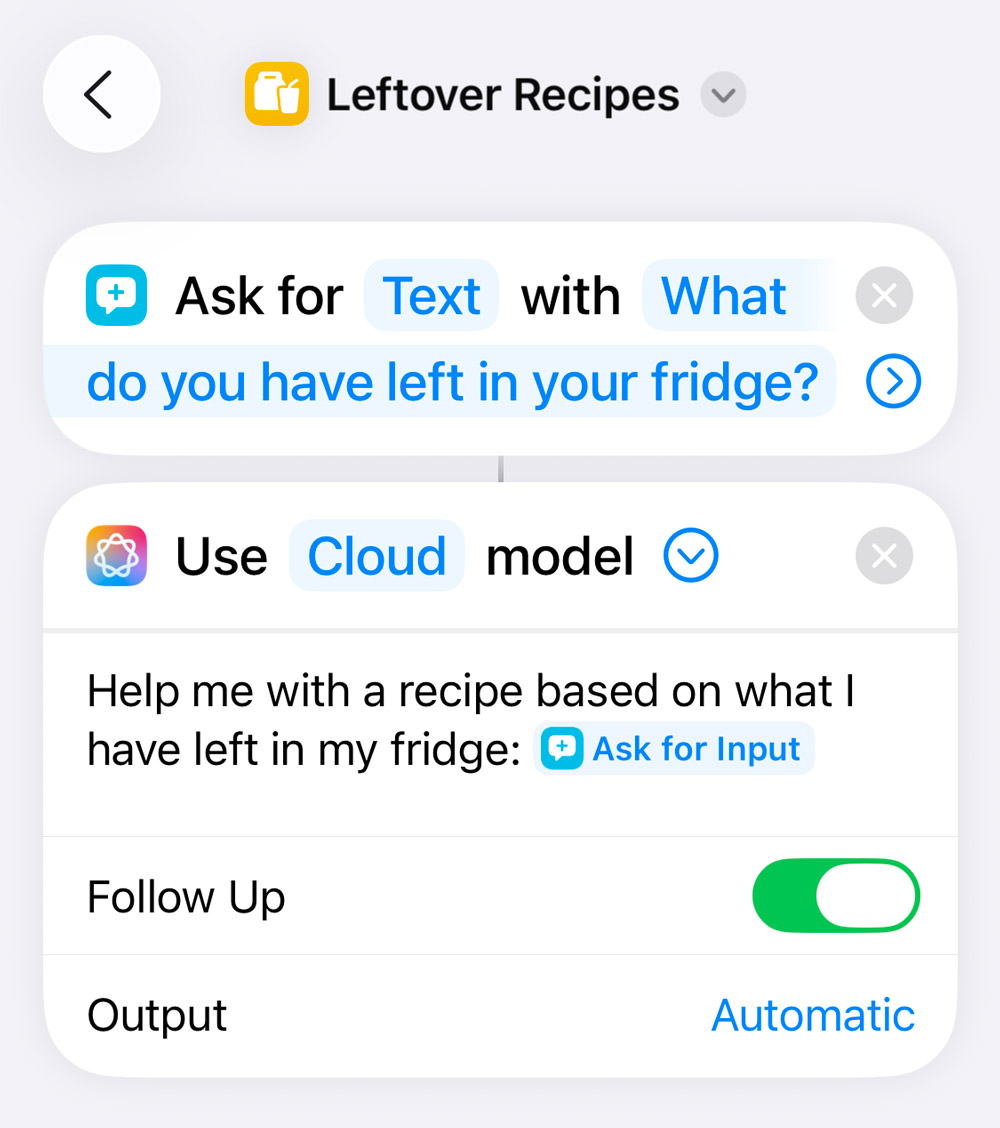
You can choose between three different AI processing methods. On-Device is the fastest and most secure, since nothing leaves your phone. Cloud uses Apple’s Private Cloud Compute system, which promises strong privacy even when requests are processed on Apple’s servers. It can handle more complex responses, but might take a little longer to reply. And for the most advanced results, you can opt for a third-party model like ChatGPT, assuming you’ve set it up through the Extension option.

If you want to go custom, the Use Model block can be configured to say pretty much anything you like. But there’s more: the Shortcuts editor also supports other intelligent tools. Tap Add Action and dive into the Apple Intelligence category, and you’ll find access to Visual Intelligence, Image Playground, and Writing Tools too. That means you can build shortcuts that, for example, generate an image from a prompt, summarize a document, or analyze the contents of a photo – all automatically, based on whatever inputs you define.
It’s all surprisingly flexible, and undeniably powerful in the right hands. If you’d rather not build workflows block by block, you can also describe a shortcut in plain English and let the app build it for you.