
- How to create fully custom gradient wallpapers on iPhone
- What Ombre offers beyond Apple’s built-in options
- Making the most of the available options
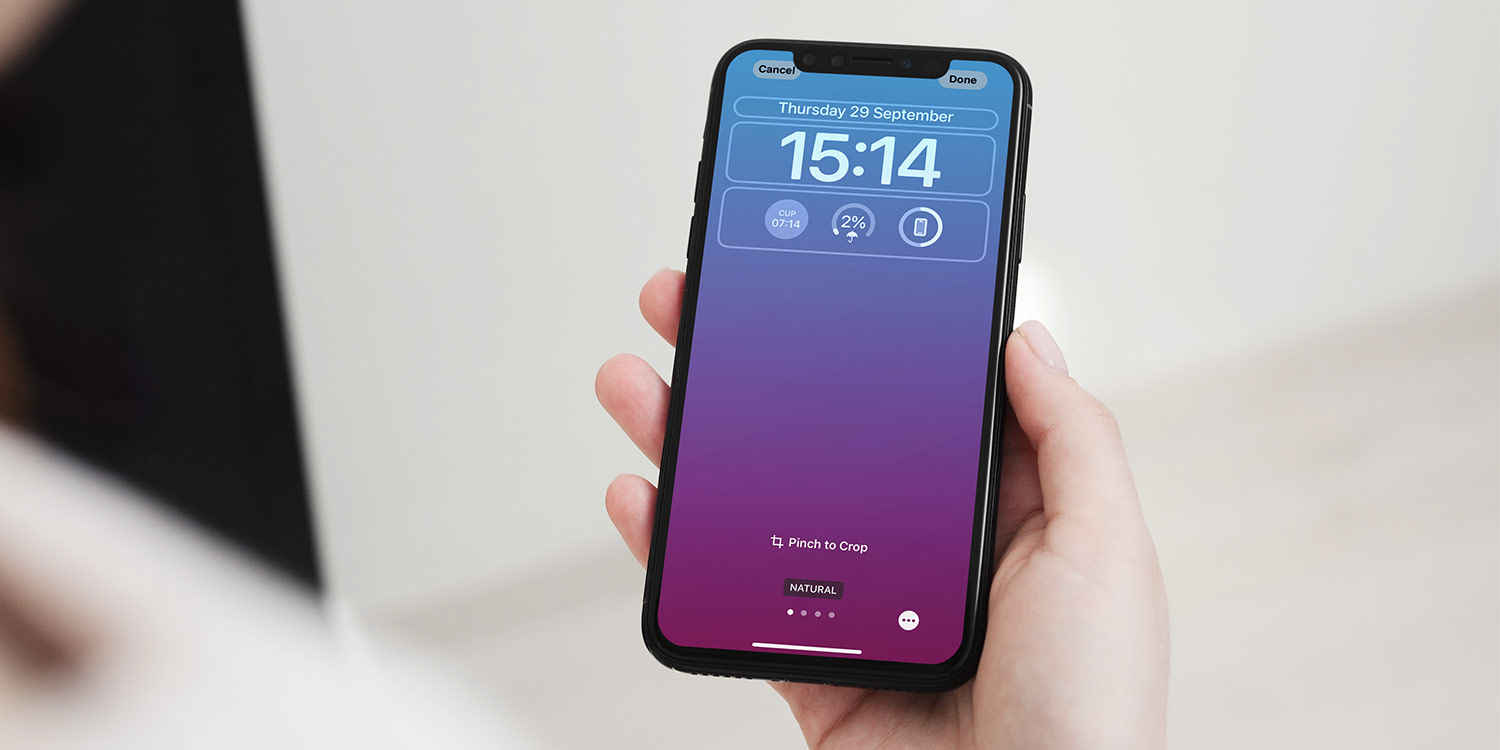
Gradient wallpapers remain a fan favorite on iPhone, and Apple’s built-in color wallpapers are a great start – but they’re also extremely limited. You only get a small palette and almost no control over the blend, angle, or shape of the gradient. If you want something more personal than the presets in Settings, Ombre: Gradient Generator is one of the simplest ways to craft your own.
It’s free to use, just a small one-off payment to remove ads, and it produces wallpaper-sized images instantly.
Getting started
Open Ombre and you’ll land on a random two-color gradient. Tapping the right half of the screen generates a new one; tapping the left half cycles backward through your history. You can also tap the camera icon to create a gradient based on colors from a photo, which is a great way to match a wallpaper to your outfit, décor, or app icon theme.
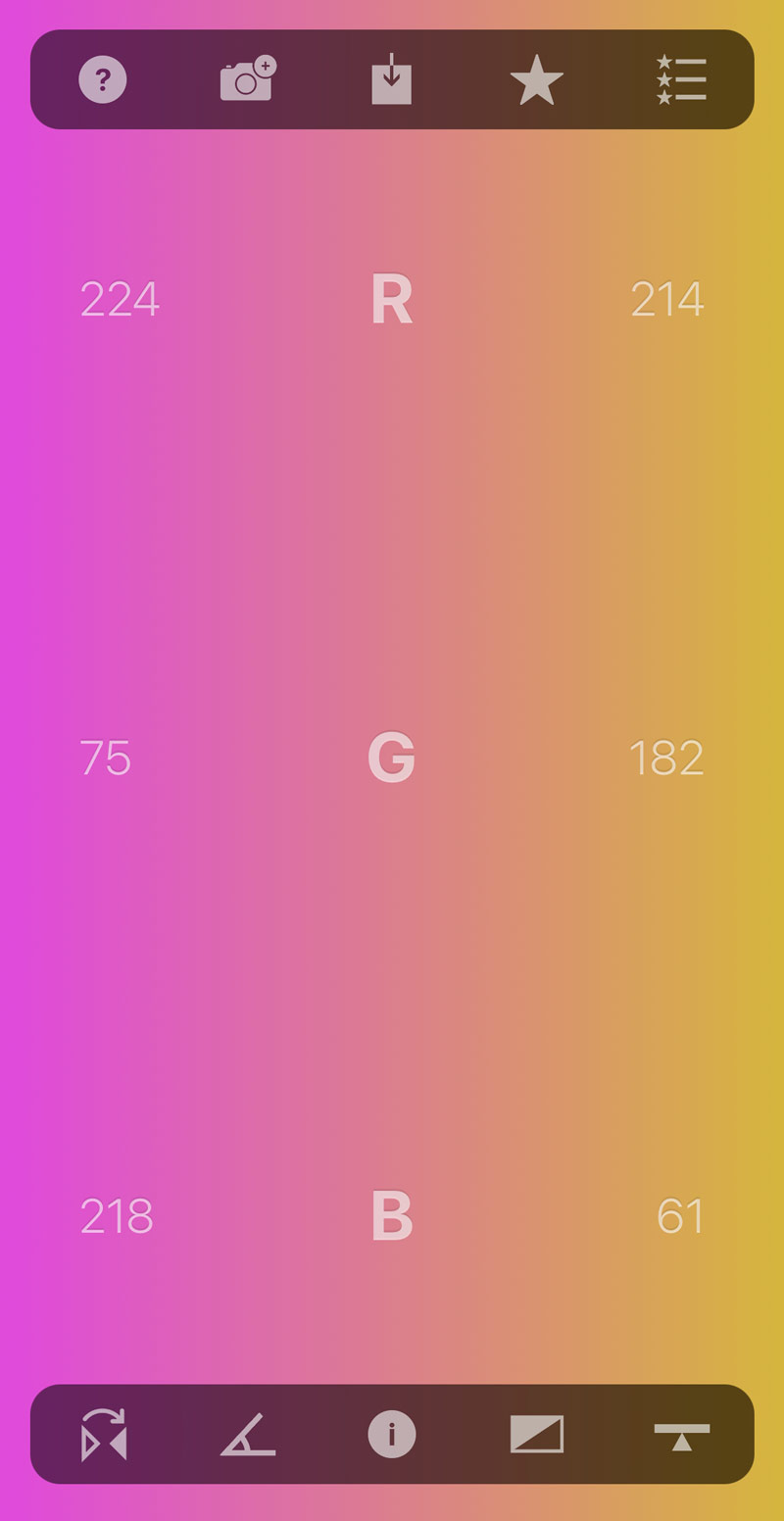
When you find something you like, simply tap the star to save it as a favorite, tap the top-right icon to view your saved gradients, and use the central save button to export it straight to your Photos library at the perfect resolution for your Lock or Home screen.
Customising your gradient
If you want more control, the bottom toolbar offers a handful of powerful but easy-to-grasp tools. The leftmost button flips the gradient’s colors, while the next toggles its direction between vertical and horizontal. The Inspector panel in the centre is where things get interesting: you can swap out either color using the eyedropper picker, and you’ll also find technical details useful if you plan to reuse the gradient in another project.
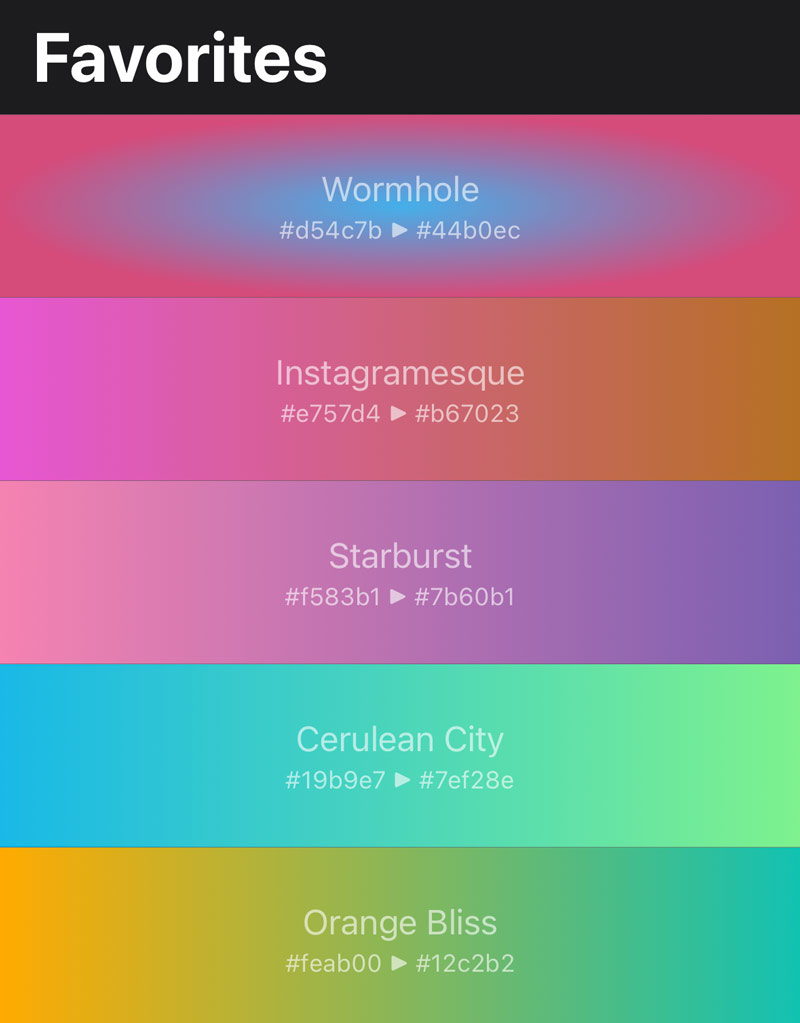
Two more controls round things out. One button switches between linear and radial gradients, giving you a totally different style, while the final slider adjusts how the colors blend by shifting their start and end points. A little tweaking can give you anything from a crisp split-tone look to a soft, atmospheric fade.

That’s really all you need to make great custom wallpapers with Ombre. If you ever feel like pushing further, more advanced apps like Procreate, Figma, or Photoshop allow you to stack and blend multiple gradients – but for quick, great-looking results, Ombre hits the spot without any image-editing knowhow required.