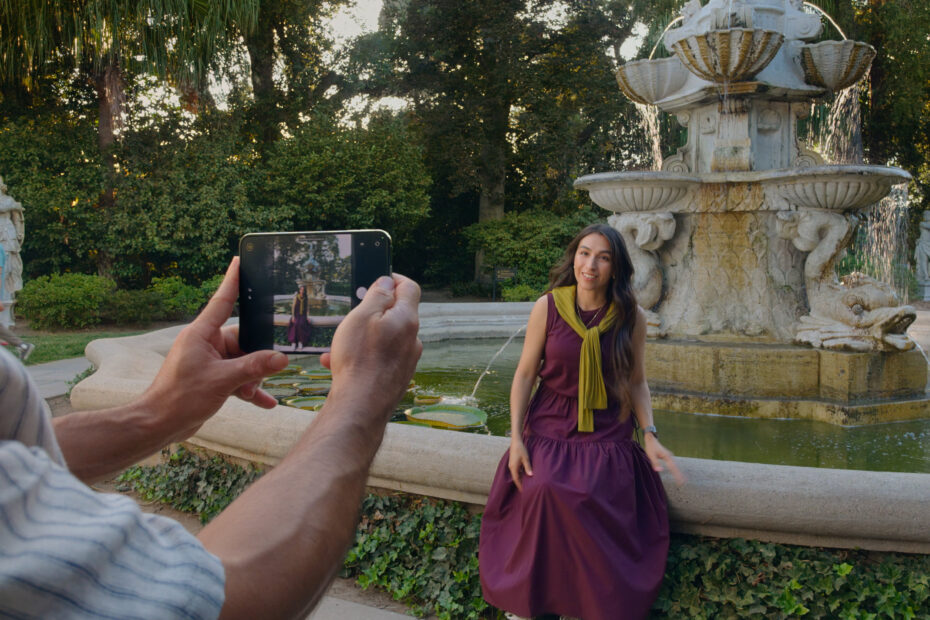

- The outer display shows your subject a live preview
- They can fix their pose before you press the shutter
- Turn it round for selfies with the best camera
Anyone who has taken a photo of someone else knows what comes next: “Let me see.” With Duo Preview, they can see before you shoot. While you compose the picture on the inner display, the outer display, which faces your subject, shows them exactly what the camera sees. They can tidy their hair, move a little to the left or try a different pose, all before you take the shot.
This feature is exclusive to iPhone Duo.
How to turn on Duo Preview
- Unfold iPhone Duo and open the Camera app on the inner display.
- Tap the new icon in the top-right corner.
- Choose Duo Preview.
The outer display now shows a live preview to whoever is in front of the camera. Take the photo as normal.
Selfies with the main camera
Here’s the clever bit. Duo Preview turns the main 48MP camera into a selfie camera, because you can see yourself on the outer display. That’s a big step up from the 12MP front camera.
With Duo Preview on, turn the open iPhone Duo round so the outer display faces you. You’ll be able to frame yourself with the much better rear cameras. Press Camera Control to take the photo, since it’s the easiest button to reach with the phone facing you.
Things to know
- Duo Preview uses the camera and both displays at once, so iPhone Duo can get warm if you leave it running for a long time. Turn it off when you’re done.
- The Kid Cue option is in the same menu, and is designed for photographing children.
Pro tip: Duo Preview is perfect for group shots. Everyone can check they’re in the frame, and nobody has to ask to see the picture afterward.