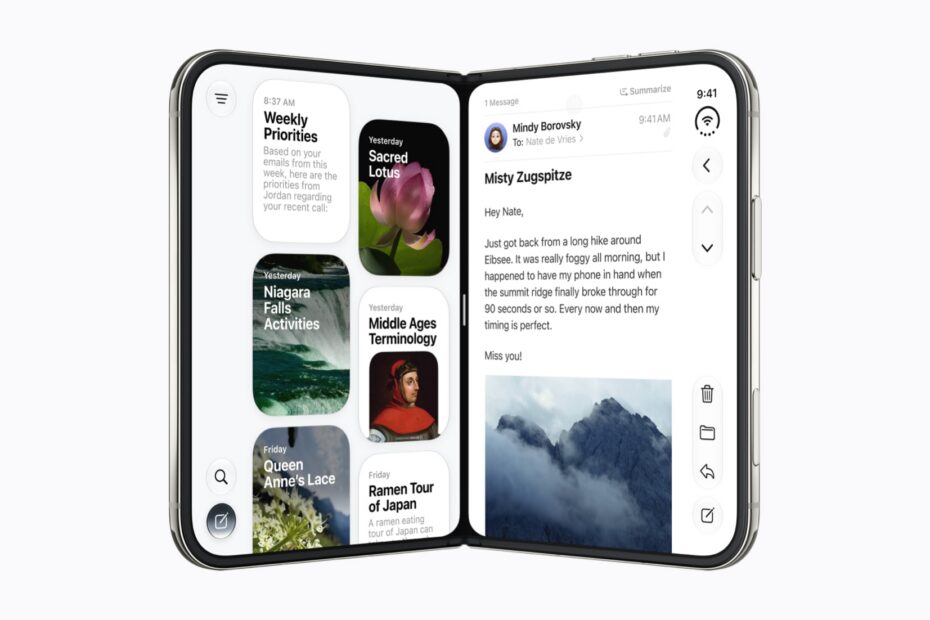

- Put the Siri app on one half of the inner display
- Ask about what you’re working on without switching away
- Your conversations stay in view while you work
On other iPhones, asking Siri something means leaving what you’re doing, at least for a moment. iPhone Duo’s inner display has room for both. Apple says Siri AI is even more useful here, because you can keep it open alongside another app and ask about what’s on screen.
Siri AI is in beta and currently available in English. It isn’t available in the EU or China yet, some requests count toward daily usage limits, and it isn’t available to users under 13.
Before you start
You’ll need to switch Siri AI on first. Go to Settings > Siri and tap Try Siri AI (Beta), then follow the instructions. Our guide to Siri AI covers the rest.
How to put Siri beside an app
The Siri app works in Split View like any other app.
- Unfold iPhone Duo and hold it in landscape.
- Open the app you’re working in, such as Mail. Swipe up from the bottom of the screen and slide it to one side.
- On the other half, tap the Siri app on the Home Screen.
Now you can ask Siri about what’s in the app beside it, like summarizing the email you’re reading or drafting a reply, without leaving the email.
More room for the conversation
On the inner display, the Siri app shows your past conversations as tiles on the left and the current conversation on the right. Even in Split View, there’s enough space to read a long answer while you keep working.
Make it a pair
If you often use Siri alongside the same app, tap the handle in the middle of the divider to pair them. The pair stays together in the App Switcher, so you can bring both back at once.
Pro tip: to find out more about asking Siri about what’s on your screen, see our guide to Siri AI’s personal context and onscreen awareness.