How to use text effects, formatting, and emoji reactions in Messages
Tom Rolfe
Emphasize your text with dynamic animation effects
Use rich formatting like bold and italic in iMessages
Use any emoji as a tapback response
Messages has some handy ways to express yourself that a lot of people never discover. You can format text with bold and italics, add dynamic animations that play when a message lands, and react to any message with any emoji you like – not just the standard six ‘tapbacks’. Here’s how it all works.
Jazz up your text
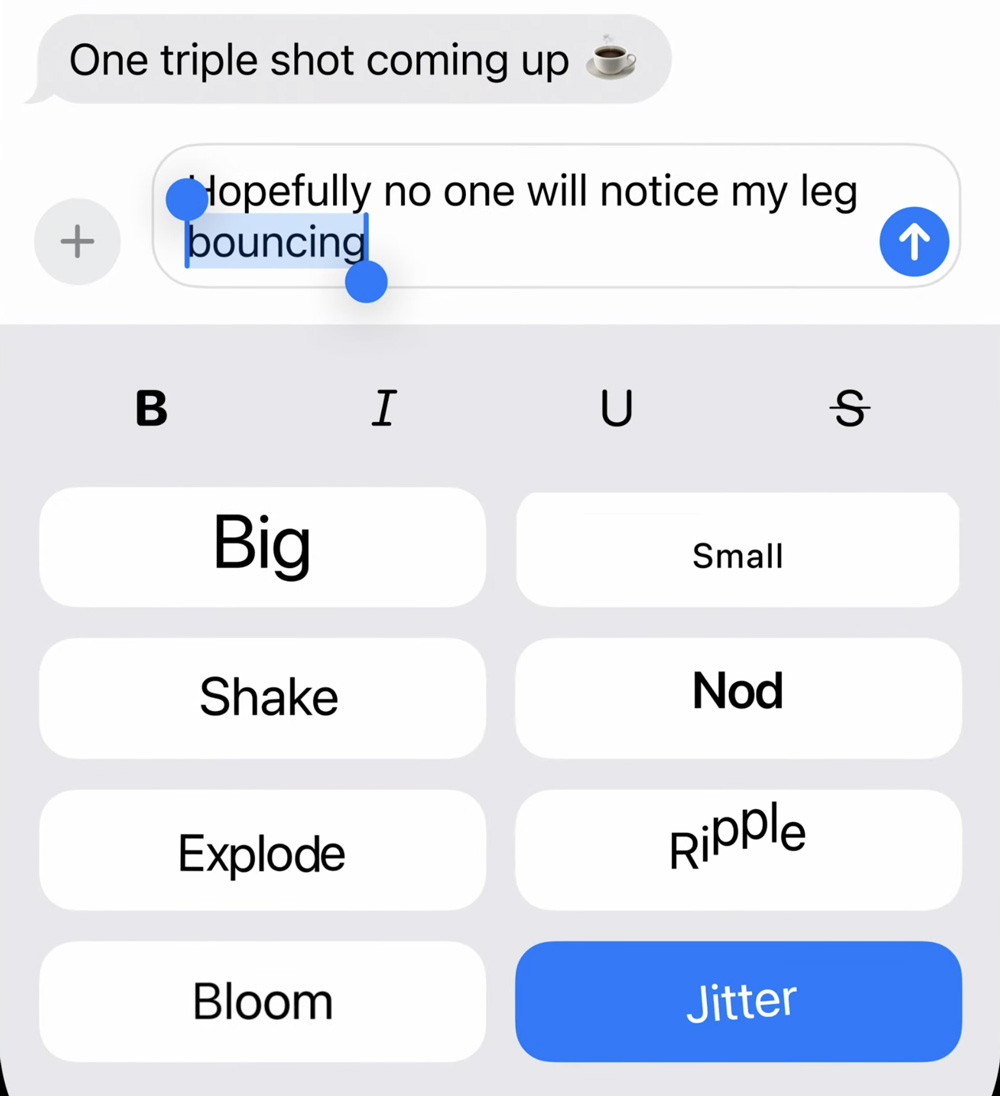
There are lots of ways to emphasize specific parts of a message, from standard text formatting like bold and italics to dynamic animations like ripple, jitter, and explode. You access both in the same way.
First, type out your message as usual and select a word or phrase. Then, press the text effects button (☰A) to the right of the QuickType bar. Remember, you can double-tap individual words to select them or triple-tap to highlight an entire sentence instantly. Note that if you press the text effects button with nothing selected, it will apply the effects to your entire message.
You’ll see straightforward formatting options allowing you to apply bold, italics, underline, and strikethrough to your messages.
Underneath is where it gets interesting: there’s a suite of animation effects you can use to really spice up your messages. Choose whichever you like and the recipient will see the animations play when they first receive the message. If you want to replay an animation, you can back out of the chat thread and open it up again.
Clear reactions
Tapbacks – those little reaction graphics you can stick to messages – might look like they’re limited to the default six options. But you can actually use any emoji or sticker as a Tapback, offering a more personalized way to respond to messages. You can even respond with an AI-generated Genmoji tapback if your device is capable of making them!
To try it, double-tap or long-press any message to bring up the Tapback menu. You’ll see the standard reactions, plus some emoji suggestions if you swipe left. To search through the full range of options, tap the little gray smiley button. This flexibility allows you to react to messages in a way that best fits the context and your personality!