Part of New in iOS 27Tip 11 of 16
- What Automatic Tab Organization actually does
- Where to find the setting
- How to browse, filter, and sort tabs manually
Anyone who keeps a dozen or more tabs open at once knows the drill: half of them are work, a few are a holiday you’re planning, and one is a recipe you’ll never make. iOS 27 finally sorts that mess out for you.
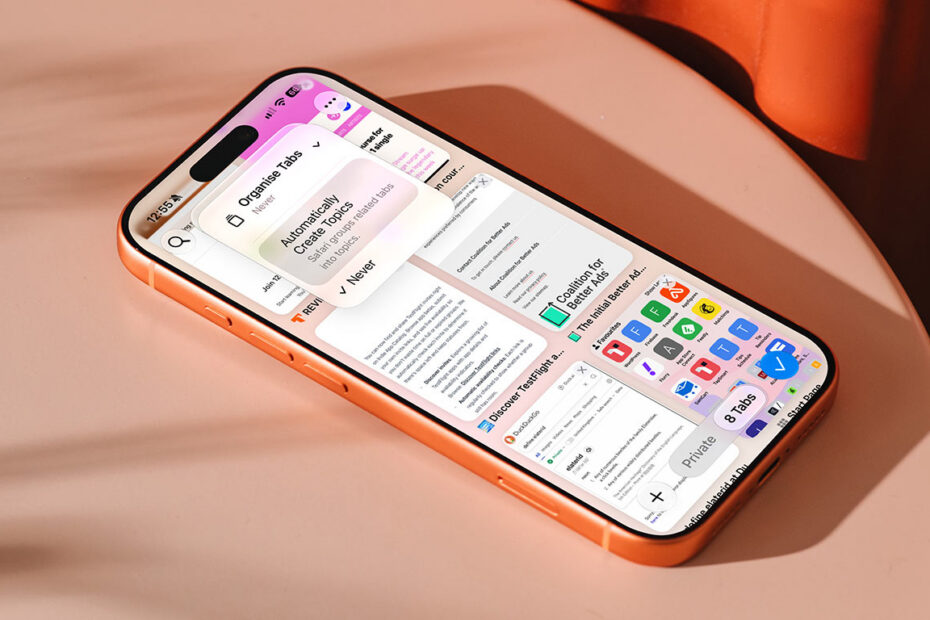
Safari can now group your open tabs into topics automatically, using on-device Apple Intelligence to work out what each page is about. Shopping for a sofa while planning a trip to Lisbon? Safari splits the two into separate groups without you lifting a finger.
This needs an iPhone 15 Pro or later, since it runs on Apple Intelligence.
Turning it on
Open Safari and tap the tabs button to see everything you’ve got open. Tap the three-line icon at the top of the screen, then choose Organize Tabs, then Automatically Create Topics.
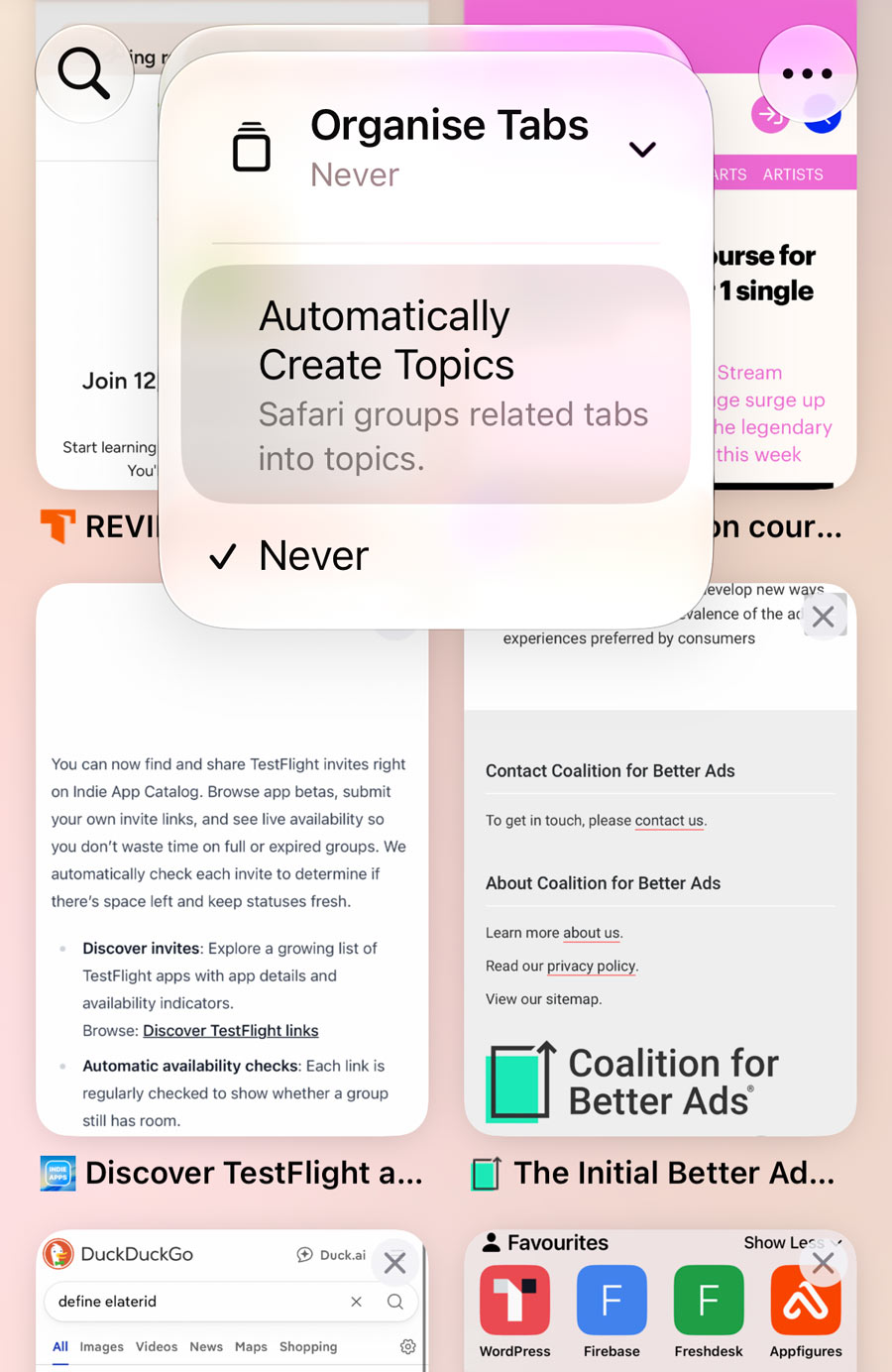
Safari will scan your open tabs and start bundling related ones into named topics – Travel, Shopping, Work, whatever fits. New tabs get slotted into an existing topic or spun out into a new one as you keep browsing.
Browsing by topic
Once topics exist, tap that same three-line icon to see them listed. Tap a topic to see only the tabs inside it, which is a handy way to focus on one thing without closing everything else.
Topics update as you browse, so don’t be surprised if a tab quietly moves group, or a topic gets renamed to something more accurate.
Sorting tabs manually too
Automatic sorting isn’t the only option. Tap the separate three-dot icon in the top left and choose Arrange Tabs By to sort everything alphabetically or by website – no AI involved, just a straightforward manual sort for when you’d rather do it yourself.
Turning it off again
Same steps in reverse: three-line icon, Organize Tabs, then select Never instead. Your existing topics stick around; Safari just stops creating new ones.