Part of Quick TricksTip 3 of 16
- The best way to select chunks of text in iPadOS
- How to access the hidden trackpad
- How the gestures differ on iPad
Placing the text cursor accurately on iPhone or iPad can be frustrating. Tapping to position it works well enough, and dragging across text offers a little more control, but both methods can feel imprecise – especially when your finger obscures the exact spot you’re trying to edit.
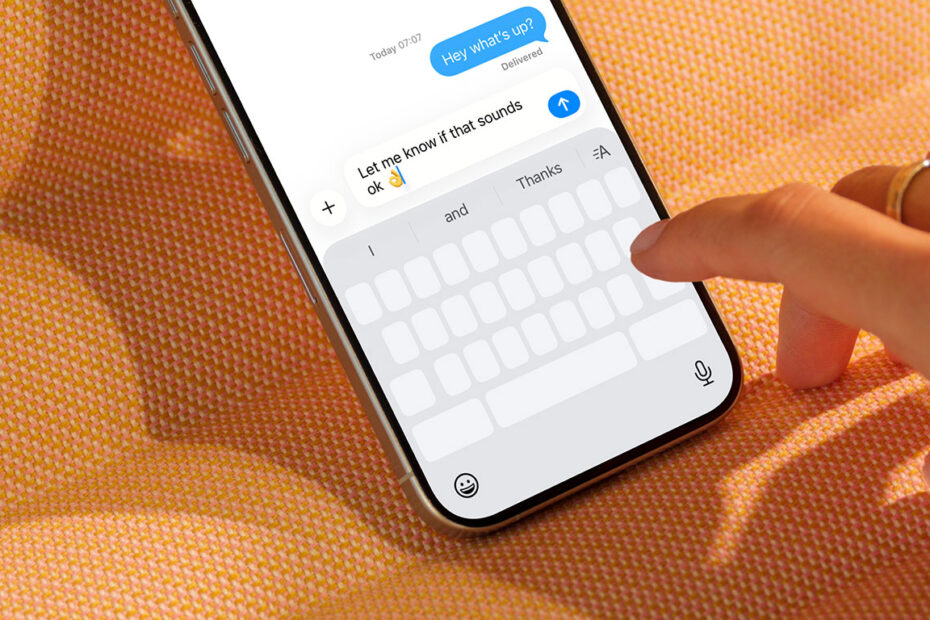
Thankfully, iPadOS includes a far more efficient solution for anyone who writes regularly. With a simple gesture, you can transform the on-screen keyboard into a virtual trackpad, giving you precise, fingertip control over the cursor.
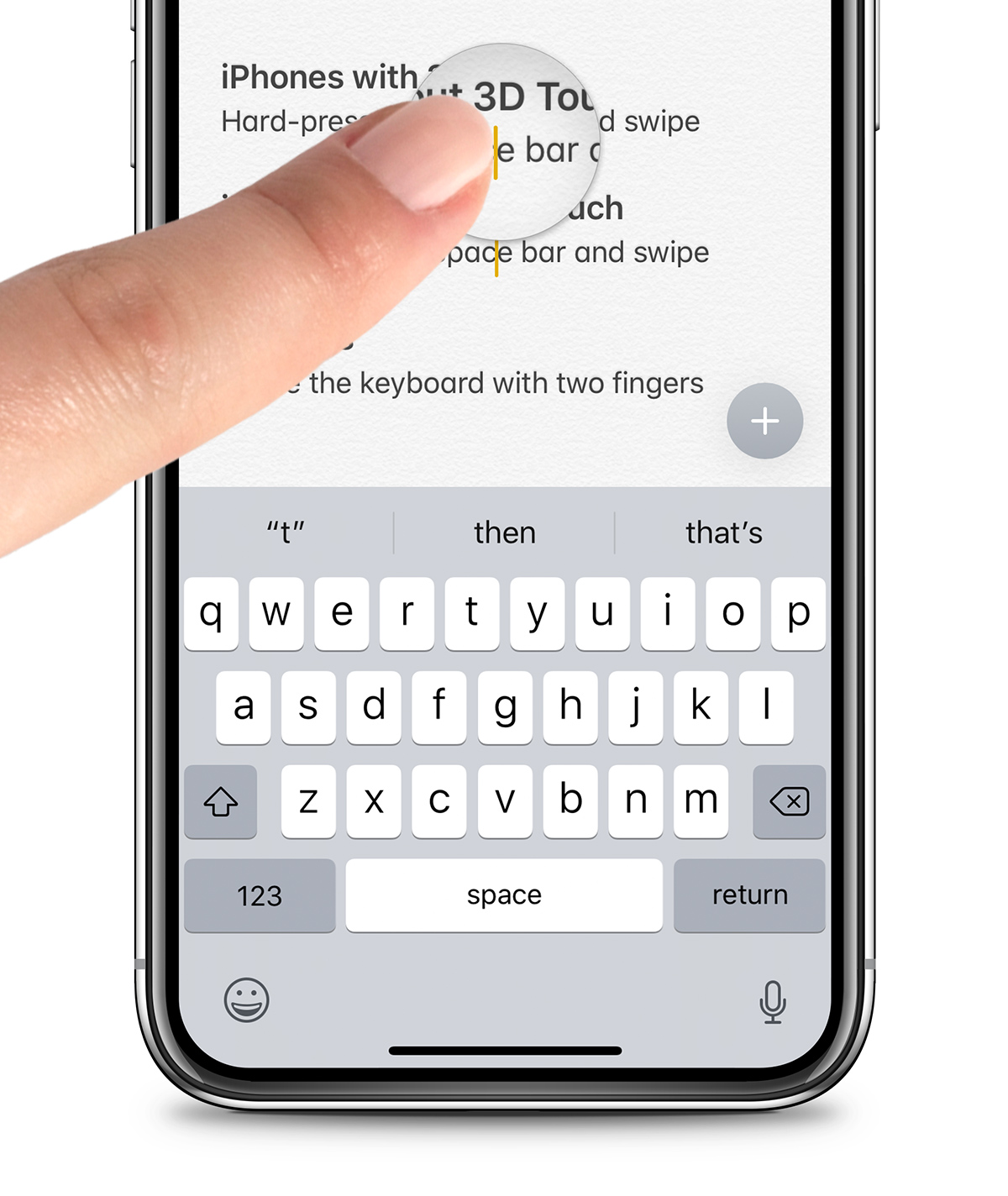
How most people scrub through text to place the cursor
Using the virtual trackpad
To activate the virtual trackpad on iPad, press and hold the space bar – or the blank area immediately below it. After a brief pause, the keyboard will fade to grey, indicating that trackpad mode is active. Keep your finger down and slide it across the keyboard to move the cursor smoothly through your text.
Once you’re finished, just lift your finger and the keyboard will return to normal.
On iPad, you can use the same space bar method, or simply place two fingers on the keyboard and swipe to activate the trackpad. Either way, it’s a faster, cleaner way to edit text – and one that quickly becomes second nature once you start using it.