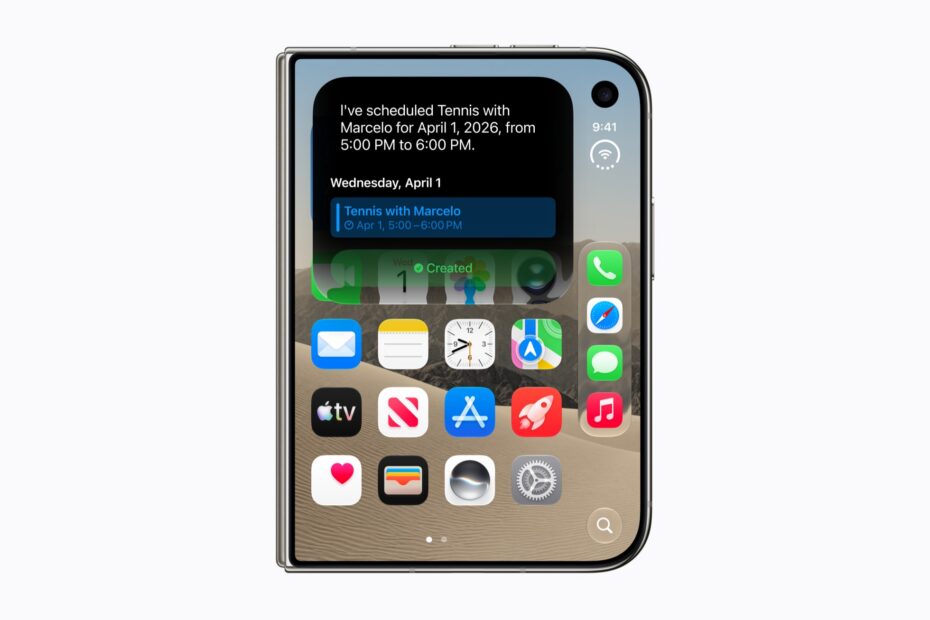

- The Dock, status bar and Dynamic Island now live on the right
- Back buttons and tab bars move to the side too
- Open it up for two Home Screen pages at once
Pick up iPhone Duo for the first time and you may wonder where everything has gone. The outer display is wider and shorter than on other iPhones, so Apple has moved the things that usually sit along the top and bottom to the right-hand edge. That leaves more height for your apps and puts the controls where your right thumb already is.
This applies to iPhone Duo only.
The new layout
- The Dock runs down the right side of the Home Screen.
- The status bar is now a small circle in the top-right corner, combining your signal and battery level.
- The Dynamic Island sits in the top-right corner on both displays. It grows downward as Live Activities arrive, and can show two at once.
Inside apps
Updated apps move their controls to the right too, including tab bars, toolbars and back buttons. It’s a bit disorienting the first time you reach for the back button in Mail and find it’s moved, but it soon becomes second nature.
Apps that haven’t been updated for iPhone Duo show a black bar down the right side of the outer display instead, where those controls would normally go. They work fine; they just don’t use the space yet.
When it’s open
Unfold iPhone Duo and the inner display shows two Home Screen pages side by side, with room for extra large widgets. Controls still sit at the outer edges, away from the fold. In Split View, the app on the left puts its controls on the left edge, so they stay within reach of your left thumb.
Which way up?
When you open iPhone Duo and turn it to portrait, it usually feels best to turn it counterclockwise, so the cameras are at the top. Whichever way you hold it, the volume buttons can follow you round.
A note for left-handers
You can’t move the Dock or app controls to the left side of the outer display. If you’re left-handed, it’s worth getting used to reaching across, or simply opening the phone for longer tasks.
Pro tip: if a favorite app looks boxed in or stretched, check the App Store for an update. Apps built for iPhone Duo look and work much better on both displays.