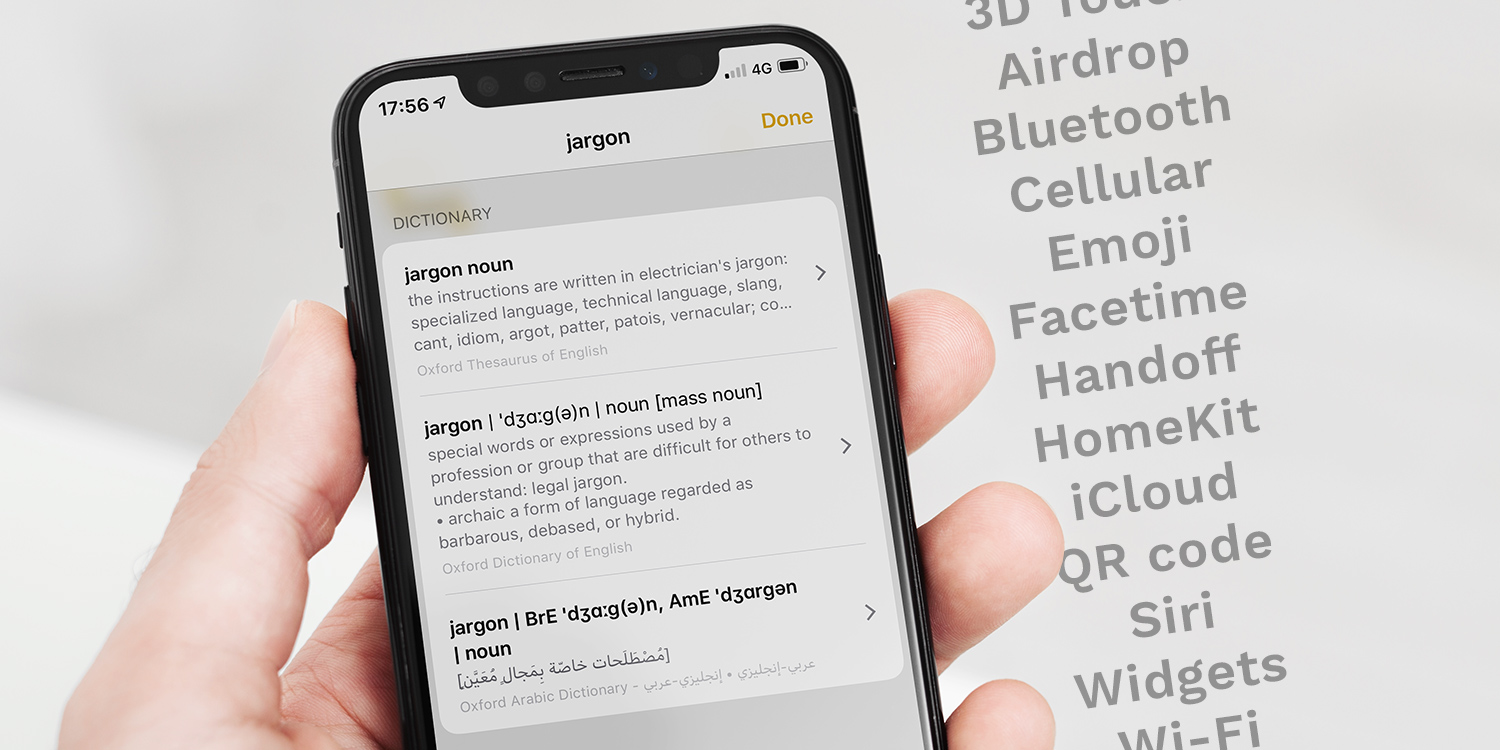

Stumbled across a word or phrase and not sure what it means? You’ve come to the right place.
We’ve listed some of the most common phrases you might encounter in iOS, defined them in plain English, and sorted them alphabetically for easy reference. You’ll find these things mentioned across various tips in this guide, so make sure you’re up to speed on what they all mean!
AirDrop – Used to transfer files such as photos or documents wirelessly between Apple devices.
Airplane Mode – Shuts off all connectivity features when activated, including cell coverage, Wi-Fi and Bluetooth.
AirPlay – Wirelessly transmits audio or video to another device, such as an Apple TV.
App Library – Automatically organizes all your apps into smart categories, found by swiping past your last Home Screen.
App Switcher – Shows your most recently used apps so you can quickly switch between them.
Apple Pay – Secure contactless payment system, accepted in stores and online.
AssistiveTouch – A virtual on-screen button offering shortcuts to various features, useful for accessibility or hardware faults.
Back Tap – A hidden gesture that lets you trigger shortcuts by double- or triple-tapping the back of your iPhone.
Control Center – Quick-access panel of shortcuts, redesigned in iOS 26 so you can resize, rearrange, and add new buttons.
Cover Sheet – The home for all your recent notifications, shown on the Lock Screen or by swiping down from the top of the display.
Dark Mode – An alternative, darker theme that’s easier on the eyes in low light.
Face ID – Facial recognition system used to unlock iPhones and authenticate purchases.
FaceTime – Apple’s built-in video calling service, now with SharePlay and reactions.
Focus Mode – Custom profiles that control notifications based on what you’re doing, like work or sleep.
Guided Access – Locks your iPhone to a single app, useful when lending it to a child.
Handoff – Lets you move tasks between devices seamlessly, like starting an email on iPhone and finishing on Mac.
Home Screen – The main grid of app icons and widgets you see when unlocking your iPhone.
iCloud – Apple’s online service for backups, storage, and syncing.
iMessage – Apple’s chat service that works over the internet, with features like stickers, reactions, and undo send.
Live Photo – A short clip captured with each photo, adding motion and sound.
Live Text – Lets you copy or translate text directly from photos, screenshots, or the camera.
Lock Screen – The first screen you see when waking your device, showing time, widgets, and notifications.
Low Power Mode – Battery-saving feature that reduces background activity.
Memoji – Personalized animated avatars you can send in Messages or FaceTime.
NameDrop – Share your contact details instantly by holding two iPhones close together.
Notifications – Alerts from apps, calls, or messages, appearing on the Lock Screen or Cover Sheet.
Passkeys – A new login system that replaces passwords with secure device-based authentication.
Picture in Picture – Mini video overlay (PiP) that lets you keep watching while using other apps.
QR Code – A square barcode that can be scanned with the camera to open websites, join Wi-Fi, or more.
SharePlay – Watch or listen with friends in sync over FaceTime.
Siri – Apple’s voice assistant, now with an optional type interface for more accurate responses.
Spotlight – Universal search tool that can find apps, contacts, files, and more.
Stage Manager – iPad’s advanced multitasking system with resizable overlapping windows.
StandBy – Full-screen display mode that turns your iPhone into a clock, photo frame, or widget hub when charging sideways.
Touch ID – Fingerprint sensor on some devices, used for unlocking and Apple Pay.
Wallet – The app that stores cards for Apple Pay, plus passes, tickets, and IDs.
Widget – Small app panels that show live information like weather or calendar events.