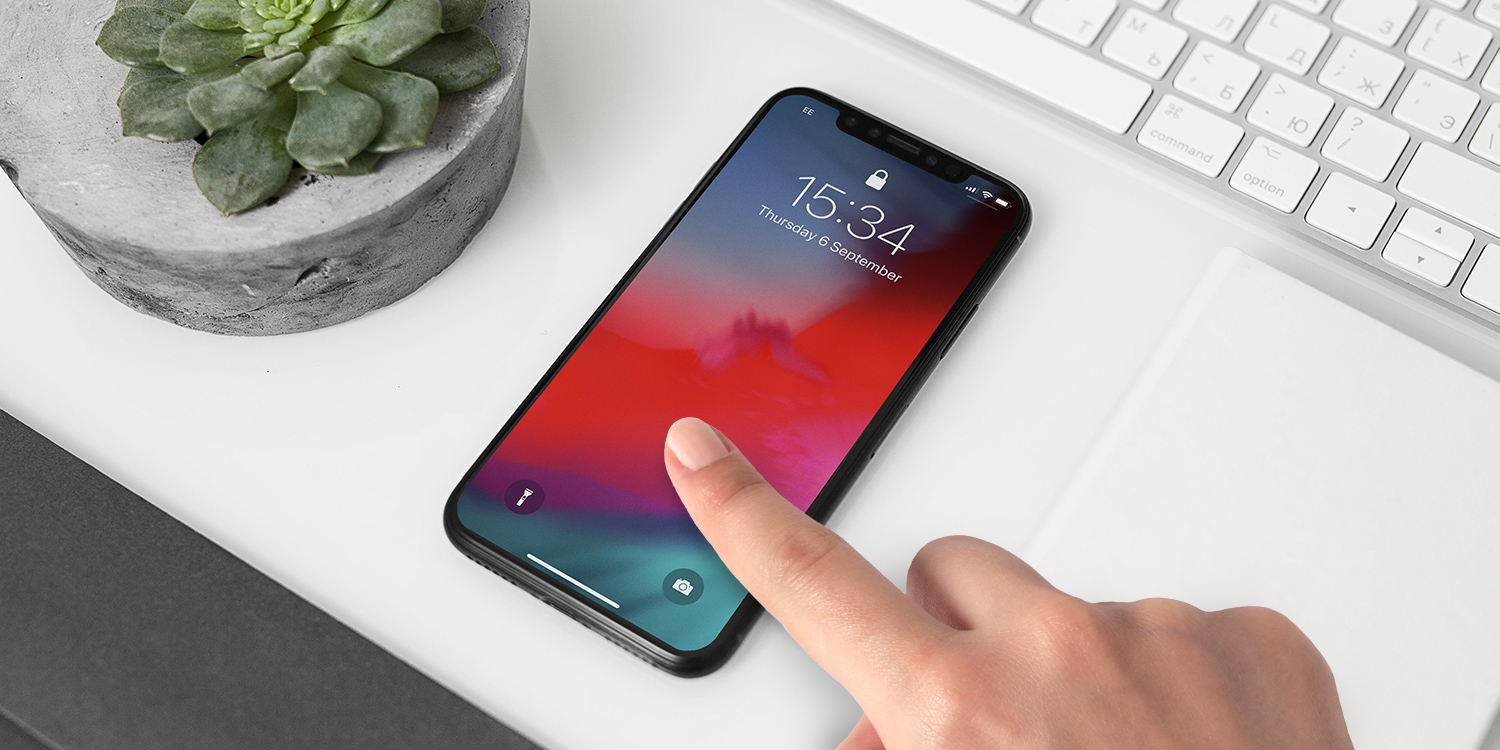

If you’re new to iPhone or iPad, it can feel like a lot to take in at once. That’s why we’ve put together this quickstart guide – a friendly tour through each chapter. Think of it as a bite-sized starter pack of tips, with plenty more to explore once you’re ready.
New in iOS 26 | Overview of all the latest features
If you’ve used iPhone before, start here to see what’s new. Liquid Glass gives iOS a striking design overhaul, spatial wallpapers look great on the Lock Screen, while Live Translation makes it easy to chat across languages in real time. This chapter runs through every major change.
Master the Essentials | The most important things to know
This is your crash course in everyday iPhone skills. Control Center gives you quick access to important settings, Spotlight can search almost anything on your device, and AirDrop makes it effortless to share files with friends. Add Apple Pay into the mix and you’ve got the basics you’ll use daily.apple pay
Make It Personal | Customize your look, feel, and sound
Your iPhone doesn’t have to look or sound like anyone else’s. Create your own Lock Screen design, or assign the Action Button to launch your favorite shortcut. This chapter is all about making the device truly yours.
Quick Tricks | Simple skills to master your device
Here’s where you’ll pick up the small touches that make a big difference. Live Text, for example, lets you copy text straight from a photo, while everyone should know how to take a screenshot. These kinds of clever little tricks soon become second nature.
Important Settings | All the options you ought to change
A few settings can save you a lot of hassle. Enable automatic updates so your iPhone stays secure and up to date, switch on Low Power Mode to stretch battery life, and learn Guided Access to safely lend your device to kids.
Boost Your Productivity | Get more done with less effort
When you want to get things done, iPhone has the tools. Focus modes help silence distractions automatically, while Notes doubles as a powerful document scanner. This chapter is packed with timesavers.
Communication | Stay connected with friends and family
Messages and FaceTime have some brilliant tricks up their sleeves. NameDrop lets you swap contact details just by bringing two iPhones together, and SharePlay means you can watch or listen in sync with friends wherever they are.
Photography | Camera skills and editing tips
Modern iPhones can handle almost anything you throw at them. Night Mode makes low-light shots look clear, while the built-in editing tools help polish your photos in seconds. You’ll also learn how to back everything up with iCloud Photos.
Surf the Web | Browse faster and safer online
Safari has plenty of hidden features to make browsing smoother. Reader View strips out clutter for easier reading, while Private Browsing keeps your history private. This chapter shows how to get the most from your time online.
Entertainment | Play, watch, and listen better
Your iPhone is also a media hub. AirPlay lets you stream music or video to a bigger screen or better speakers, and Siri can even identify a song playing nearby. Throw in karaoke and there’s lots here to boost your downtime.
Siri & AI | Smarter ways to get things done
Apple Intelligence brings clever new tools to your apps. You can clean up photos with a tap, get smart summaries of web pages, or even type commands into Siri for quieter, more accurate results.
Privacy & Security | Keep your data and device safe
Peace of mind comes built-in if you know where to look. Passkeys offer a safer, simpler way to log in, while Hide My Email shields your inbox from spam. Apple’s rapid security updates round things off.
Health & Safety | Look after yourself and your loved ones
iPhone can do more than track your steps. Use the Health app to log your sleep or track your meds, set up Medical ID so first responders have your key info, and try Check In to let friends know you got home safe.
Advanced | Unlock even more hidden tricks
When you’re ready to explore deeper, this is where you’ll find the hidden gems. Back Tap lets you trigger actions with a quick knock on the back of your phone, and connecting an external drive can turn your iPhone or iPad into a mini computer.
Troubleshooting | How to fix common problems
Crashes happen, but most fixes are simple. Force restart your device, reset your network, or rely on Find My to track down a missing device. This chapter is your safety net for when things go wrong.
iPad Exclusives | What can iPad do that iPhone can’t?
iPad has a few tricks you won’t find on iPhone. Get to grips with Stage Manager for multitasking, brainstorm ideas with Freeform, or turn your iPad into something closer to a laptop by connecting a computer mouse.